
How to Guide
Getting started
Starstuff runs in your browser at starstuff.space. No downloads, no installs.
Sign in
Open https://starstuff.space in your browser. You'll see the welcome screen: "Hello you stellar being! Welcome to Starstuff!"
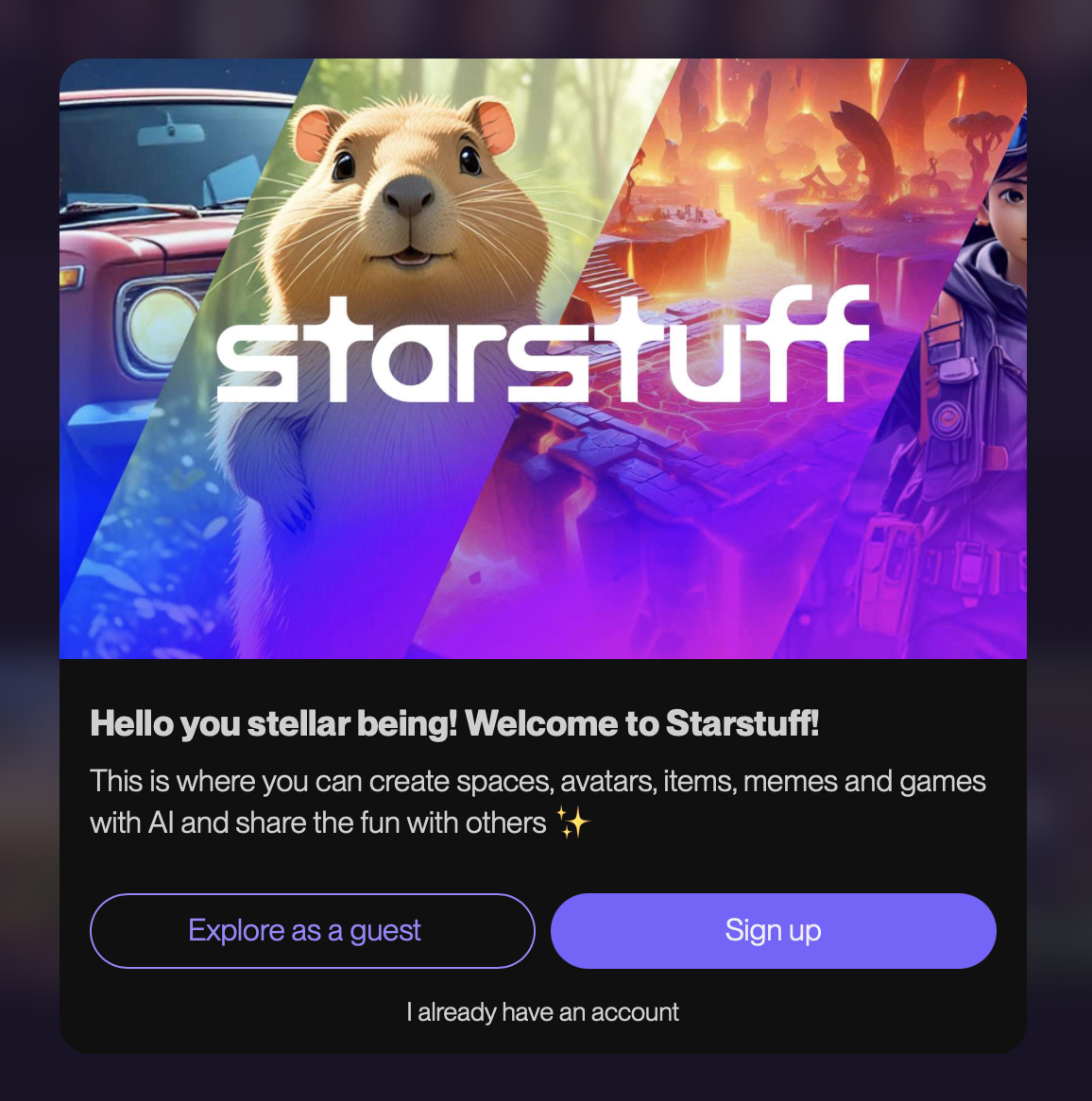
Sign Up or Sign in.
Pick Sign up to create an account, Explore as a guest to look around first, or I already have an account to sign in.
Guests can only explore. To create, chat, save creations, buy Starbux or add friends, you need an account with a verified email.
Setup your profile
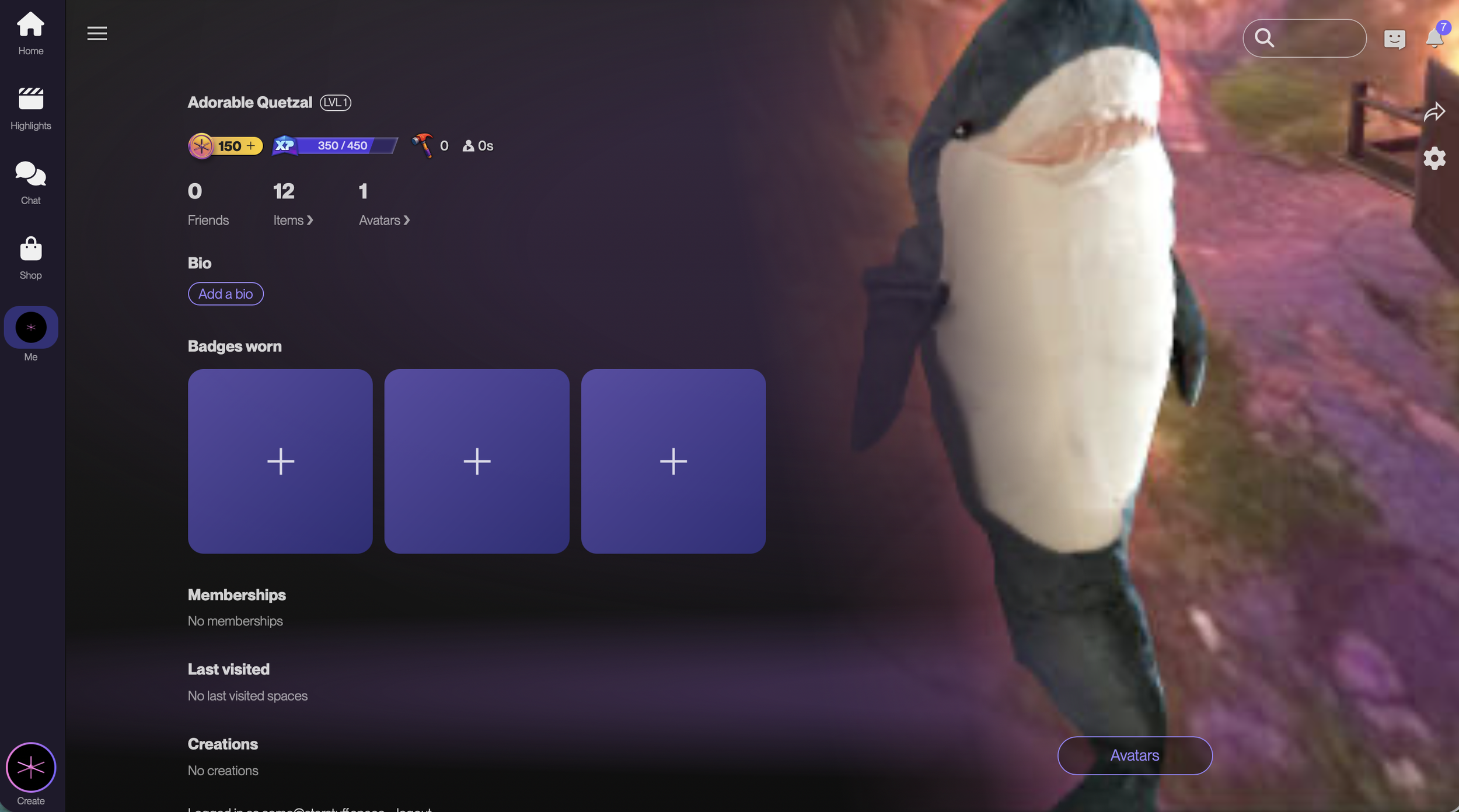
Click the “Me” tab in your navigation bar
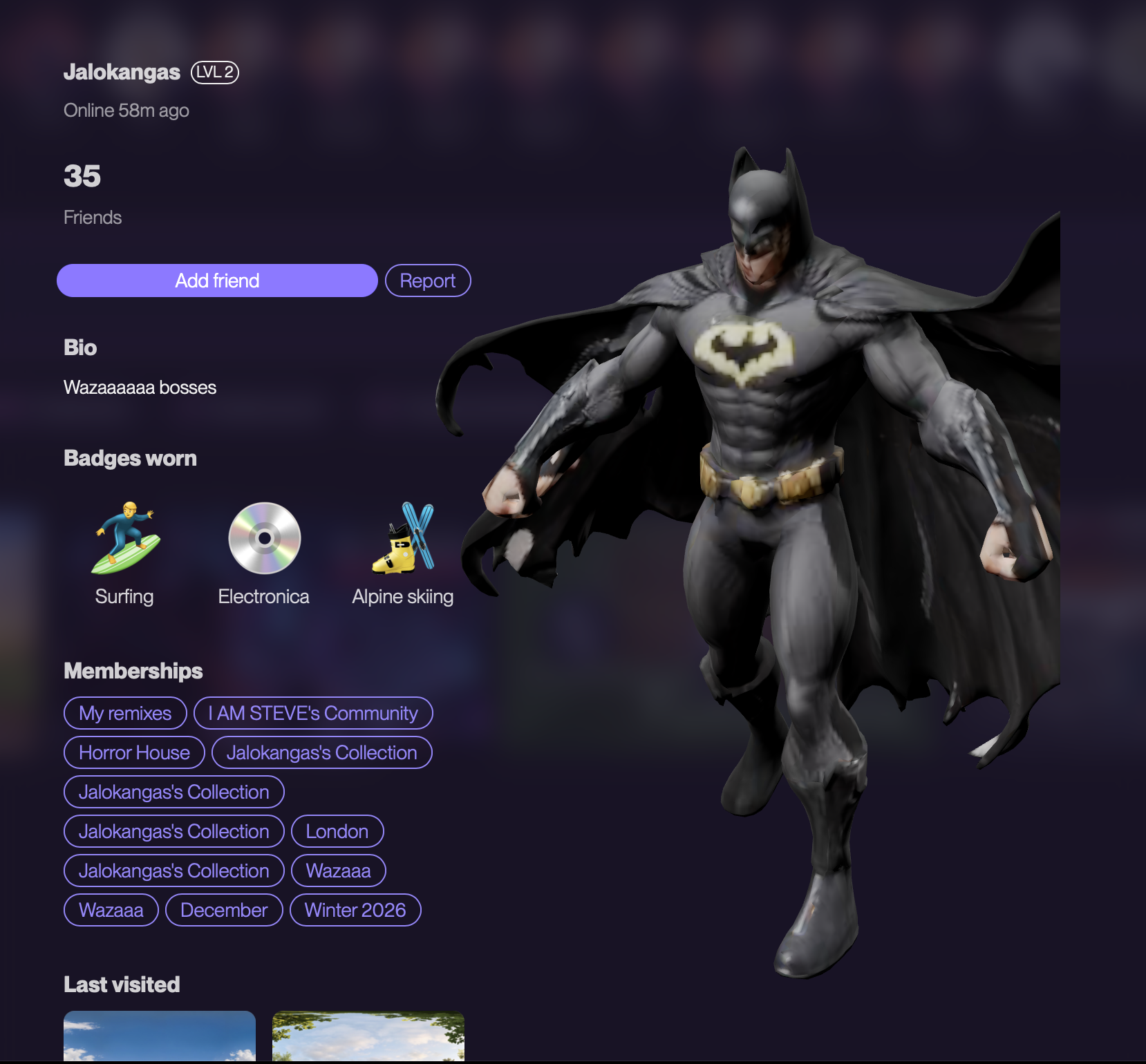
You’ll find your current avatar, avatar and item inventory, friends, bio, nickname, badges, creations, stats, search, feedback, settings and a profile share button in your profile.
Your first quest is What's your nickname?
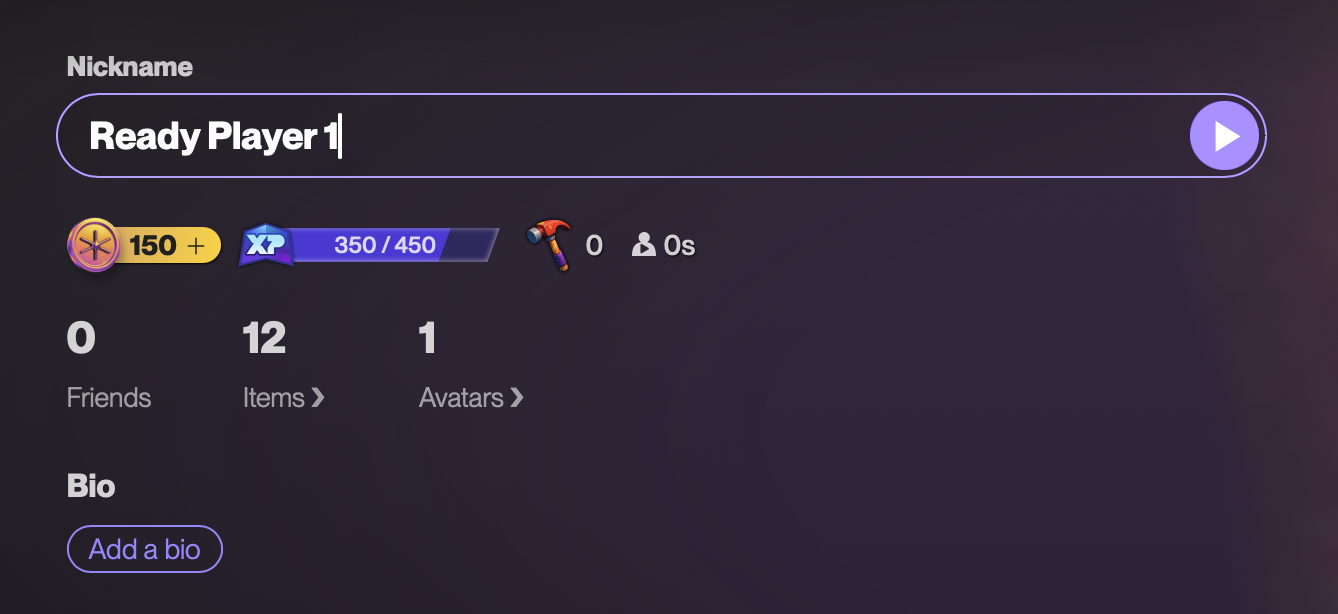
Click your nickname in your profile to edit it.
Type a name people will recognise you by and press the arrow.
You can change it later from your profile (the pencil icon next to your name).
Completing this quest gives you XP straight away.

Add a bio
Tap Add a bio in your profile under your name.
Keep it short: what you make, what you play, what you're into. Your bio shows on your public profile together with your friend count, items, avatars and the badges you've chosen to wear.
Your avatar
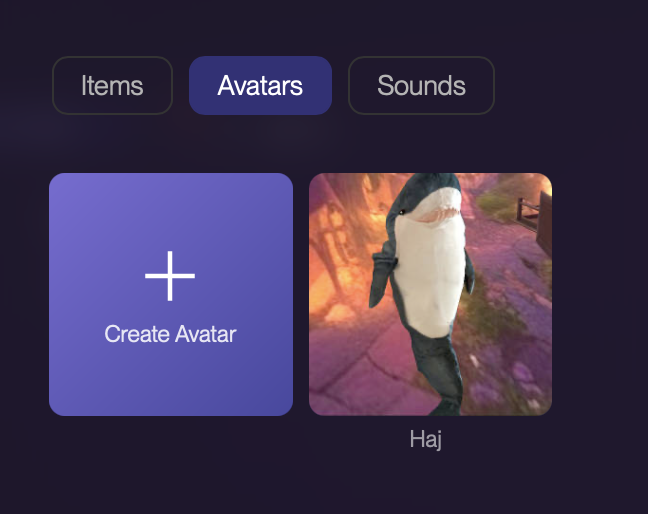
Make it stand out
Your avatar is how everyone sees you everywhere on the platform. You can buy one from the Shop or describe your own, optionally adding a reference photo, and let the AI build it.
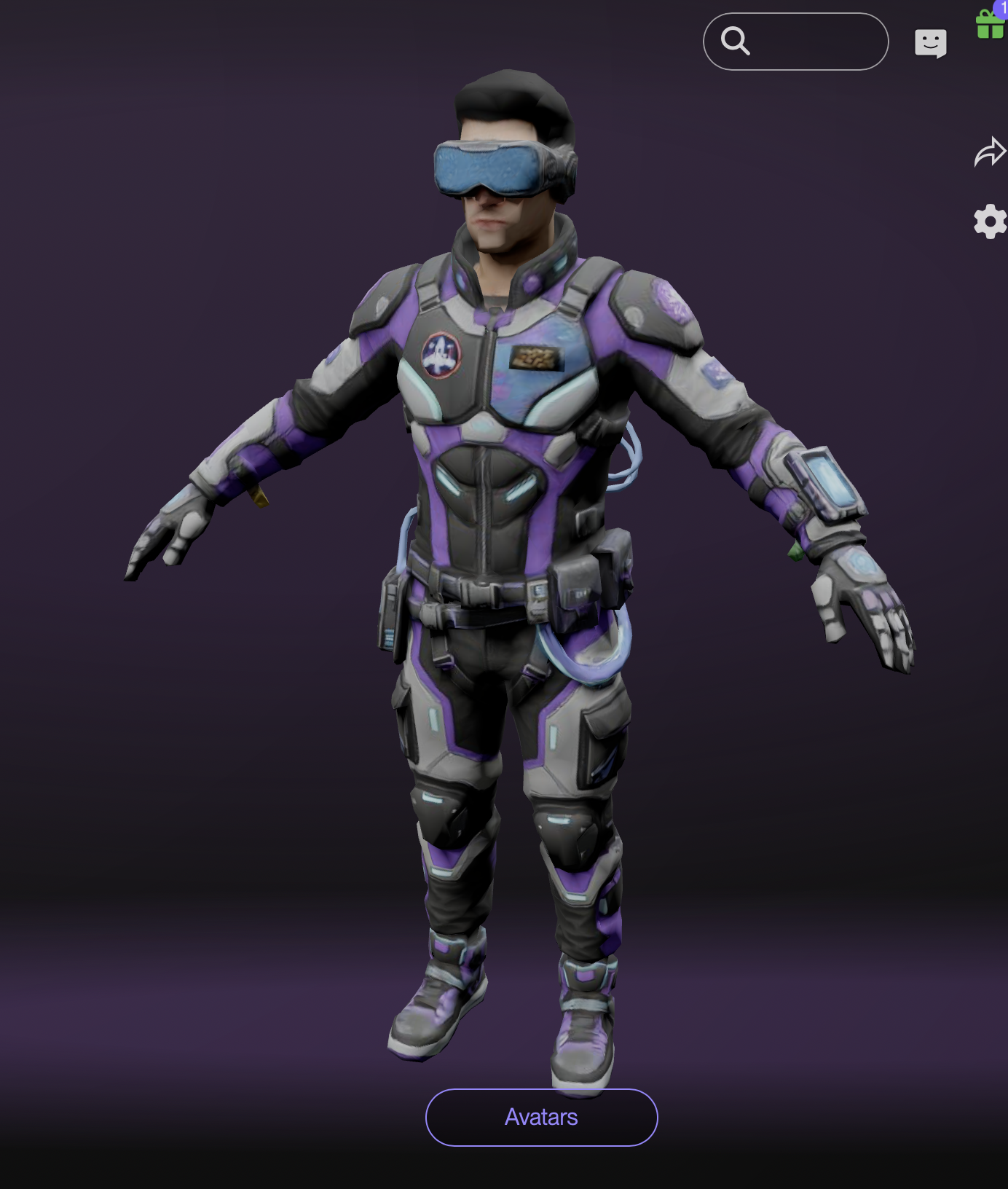
Shop for an avatar
Open Shop and choose the Avatars tab (or filter Featured / Avatars / Items).
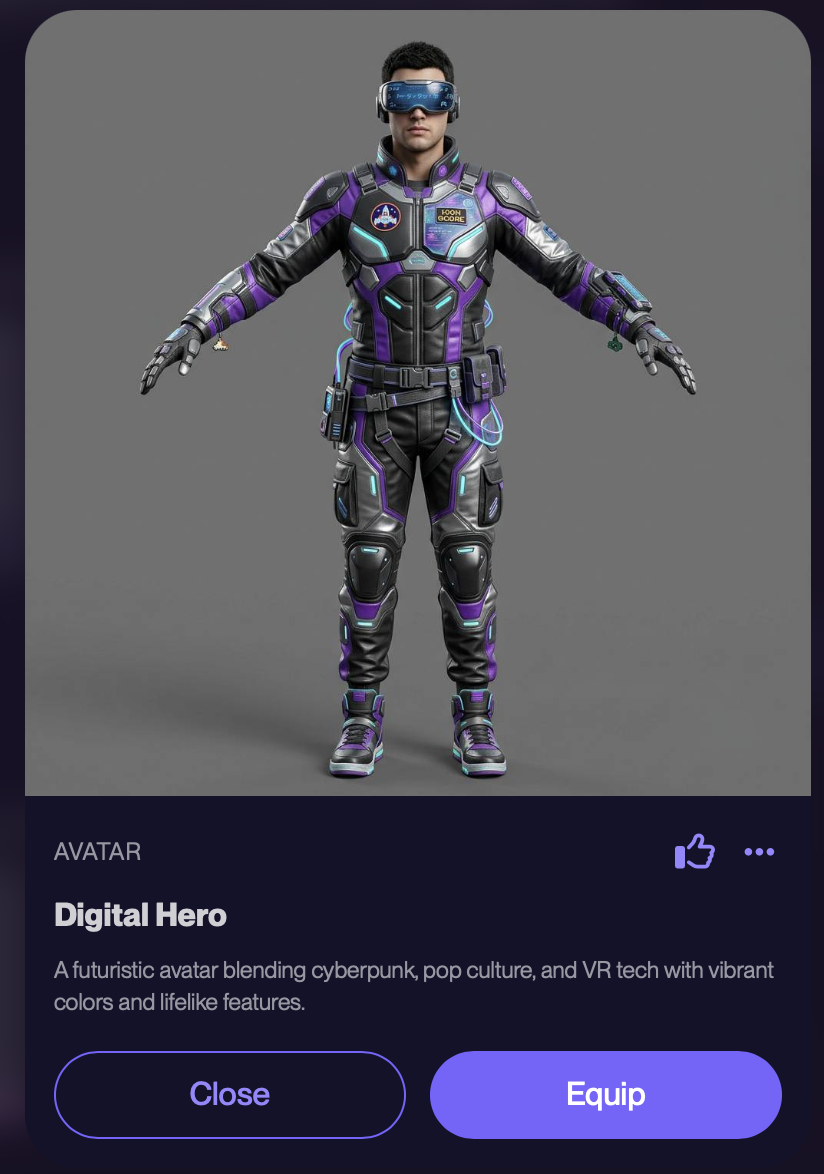
Tap an avatar to see it, with its name, description and price in Starbux.
Press Buy, confirm, and it's yours. Owned avatars show an OWNED tag.
Press Equip to start using it. You can switch between your avatars any time from Me → Avatars.
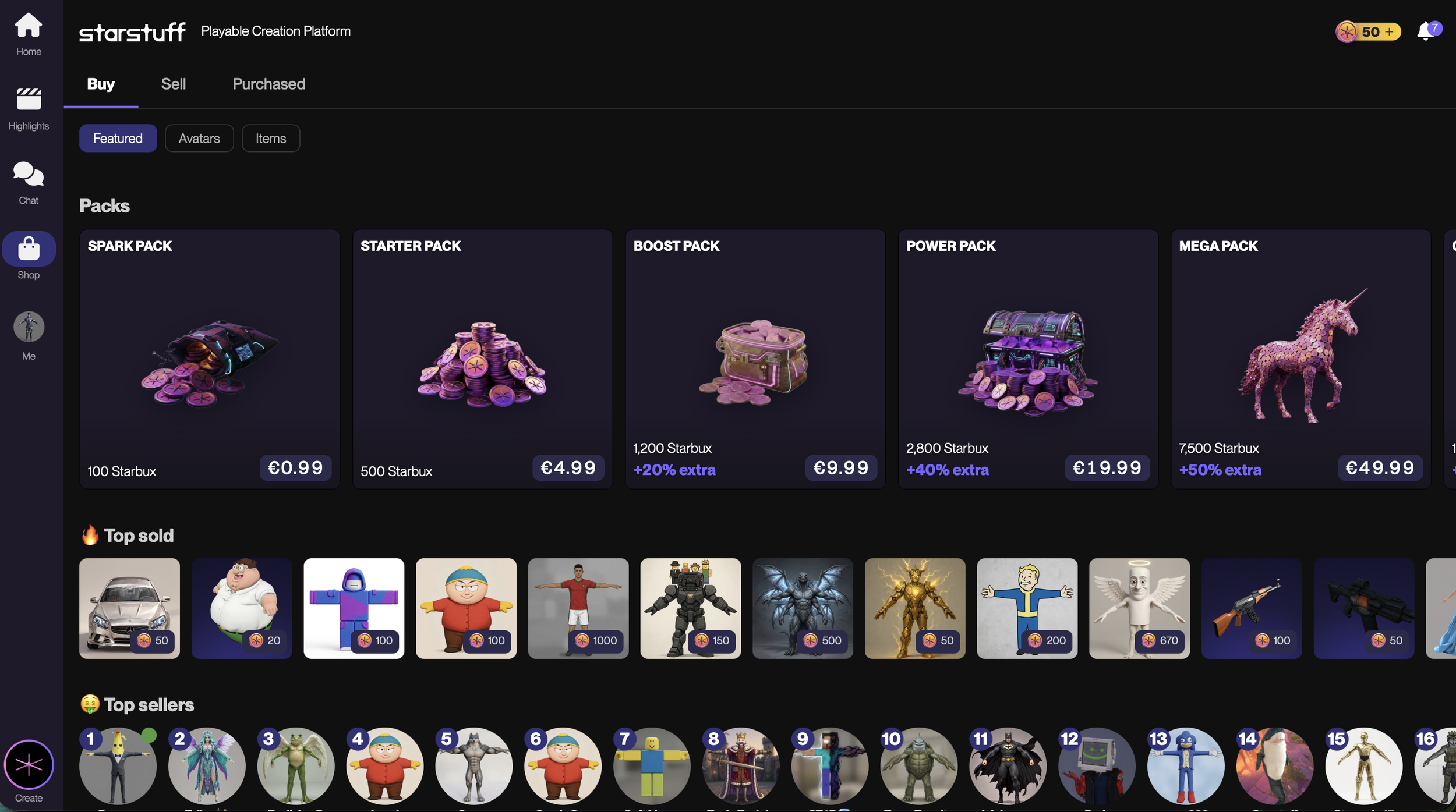
Starstuff shop with user-created avatars and items with Starbux top up deals.
Create your own avatar
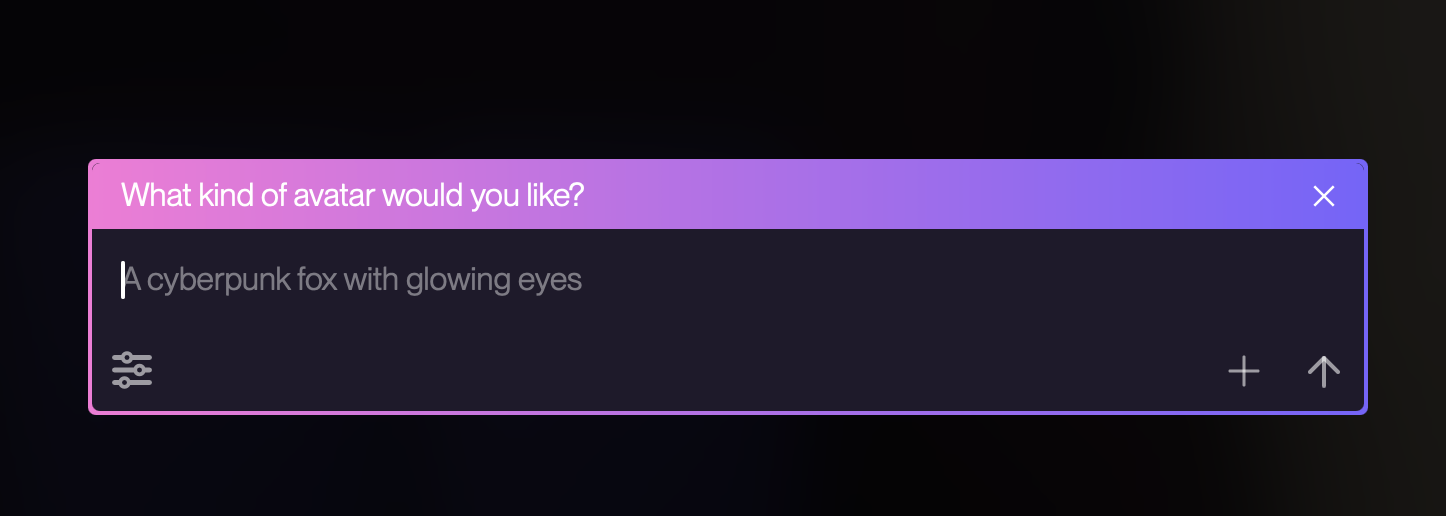
Press Create and pick Create avatar (or type into the prompt box on Home).
Describe what you want: "a cyberpunk fox with glowing eyes". You can also Upload an image as a reference.
The AI can ask a clarifying question or two, then shows a preview. Keep chatting to change it: "make it photo realistic", "add a cape".
When you're happy, confirm the purchase for the Starbux shown on the preview. Creating an avatar typically costs 100 Starbux.
Open Me → Avatars and Equip it.
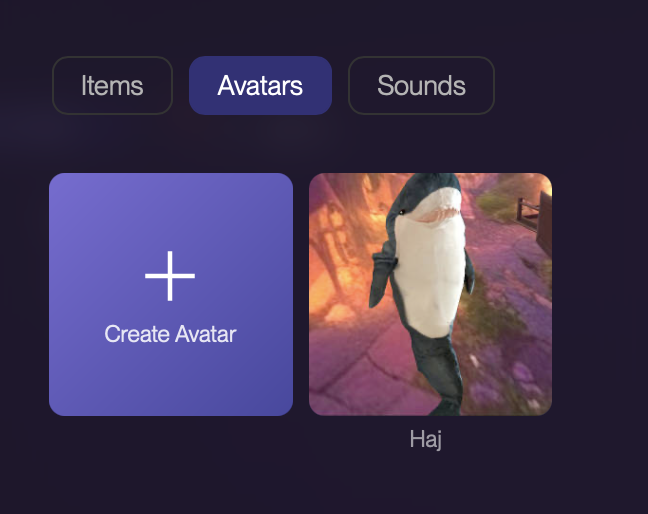
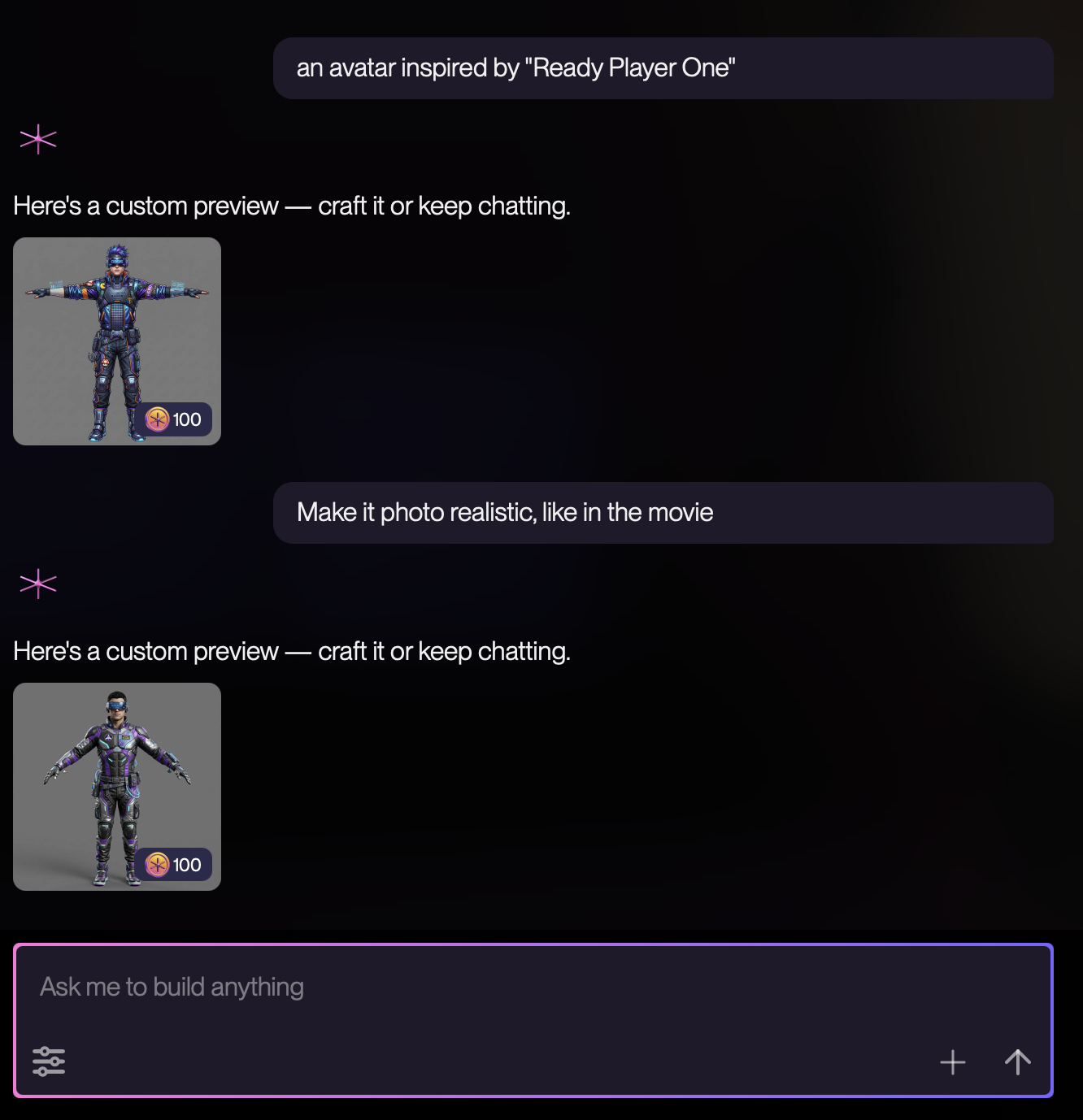
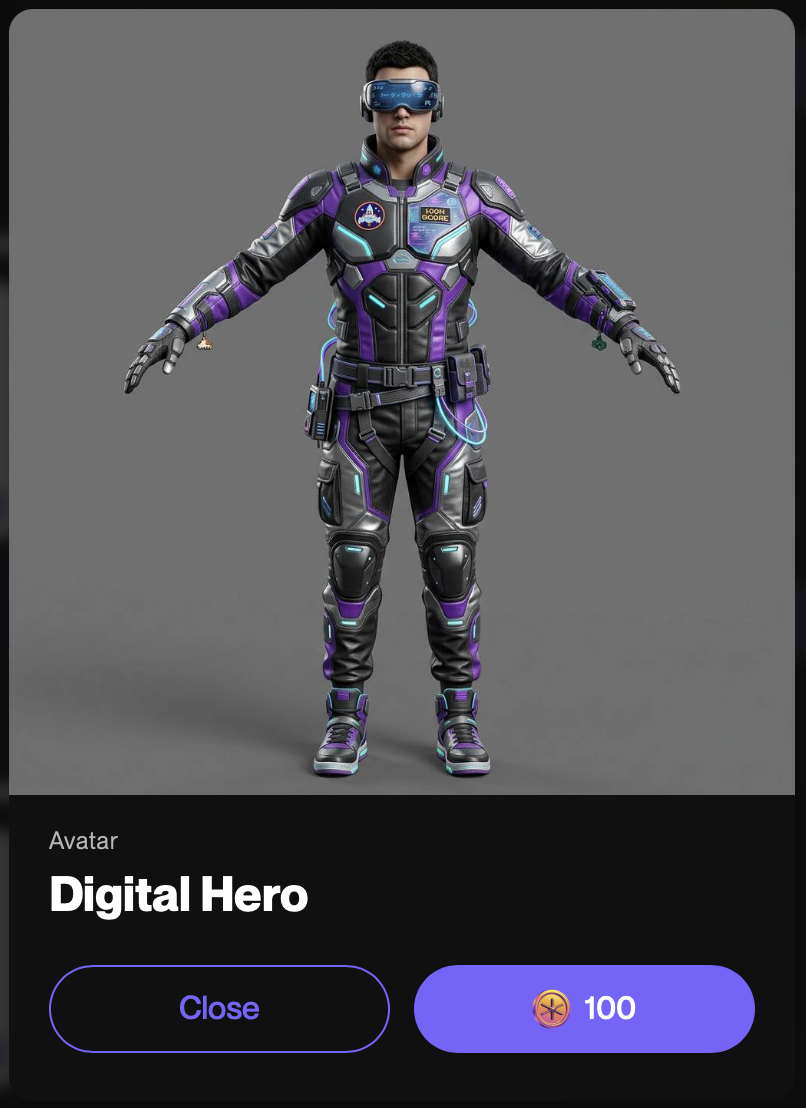
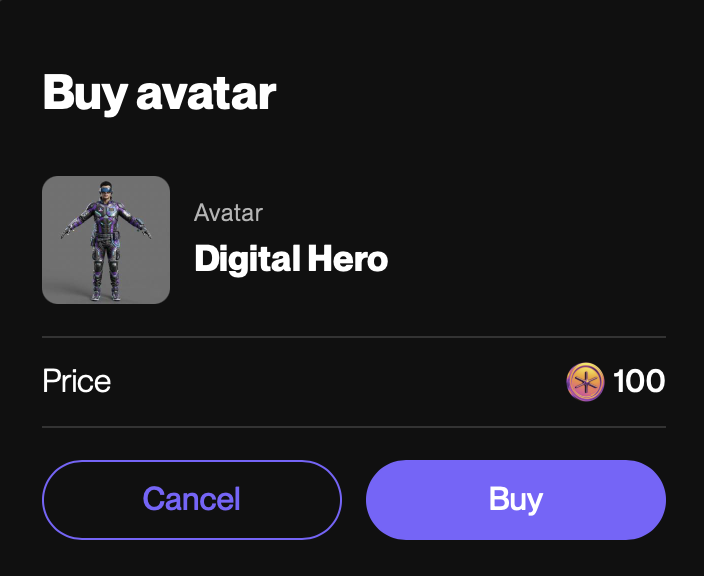
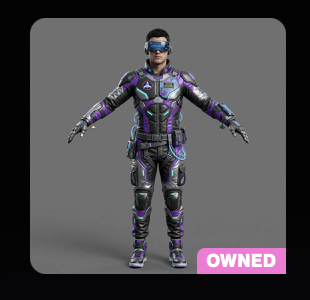
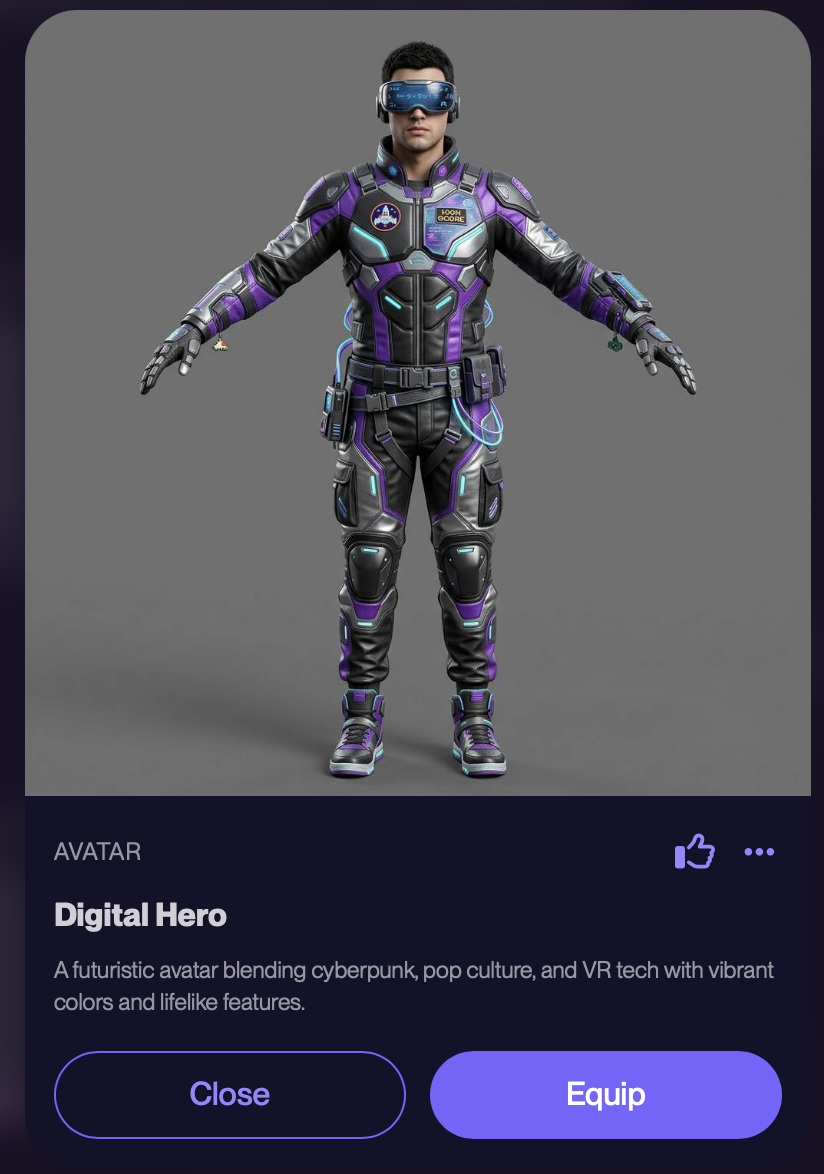
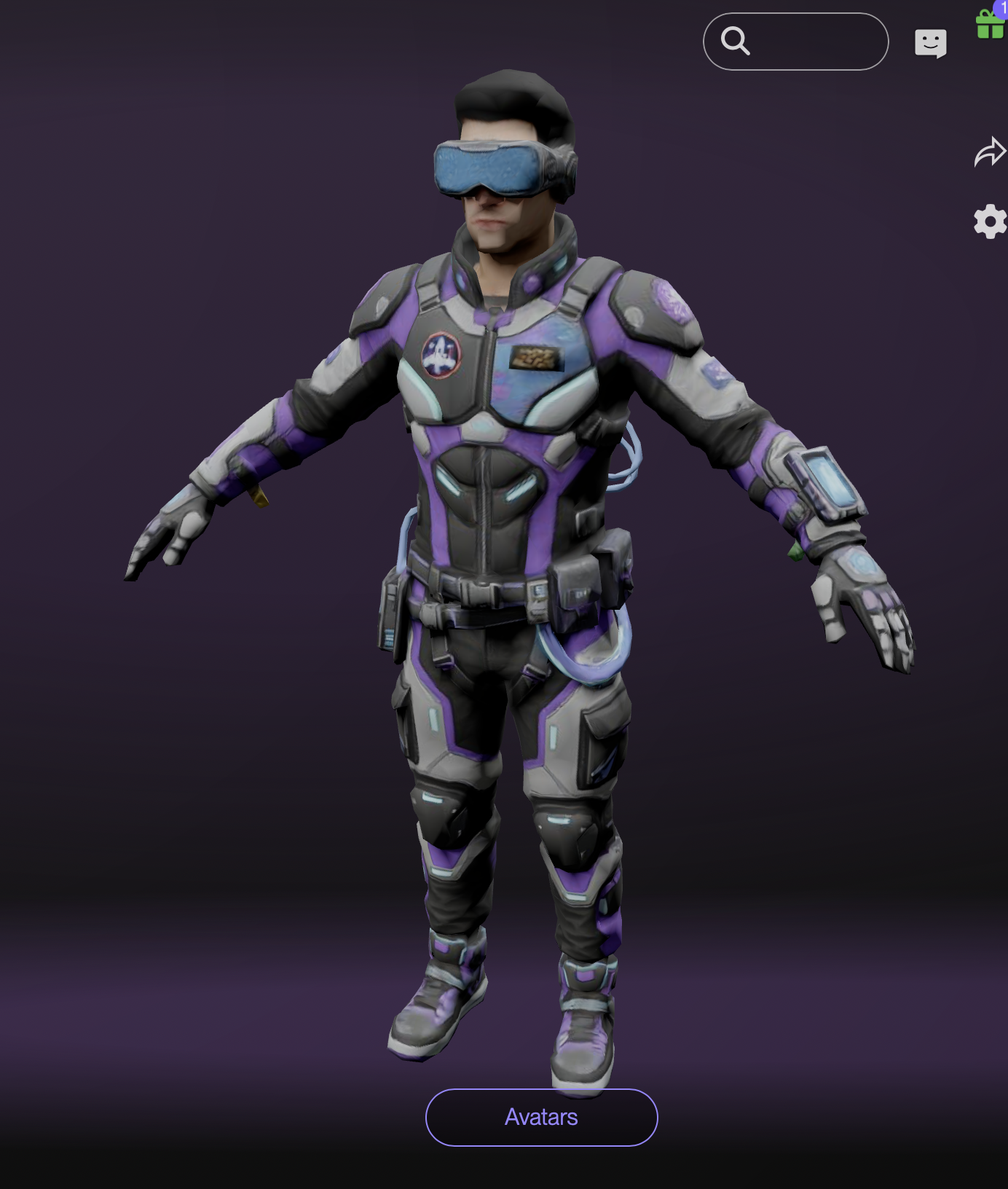
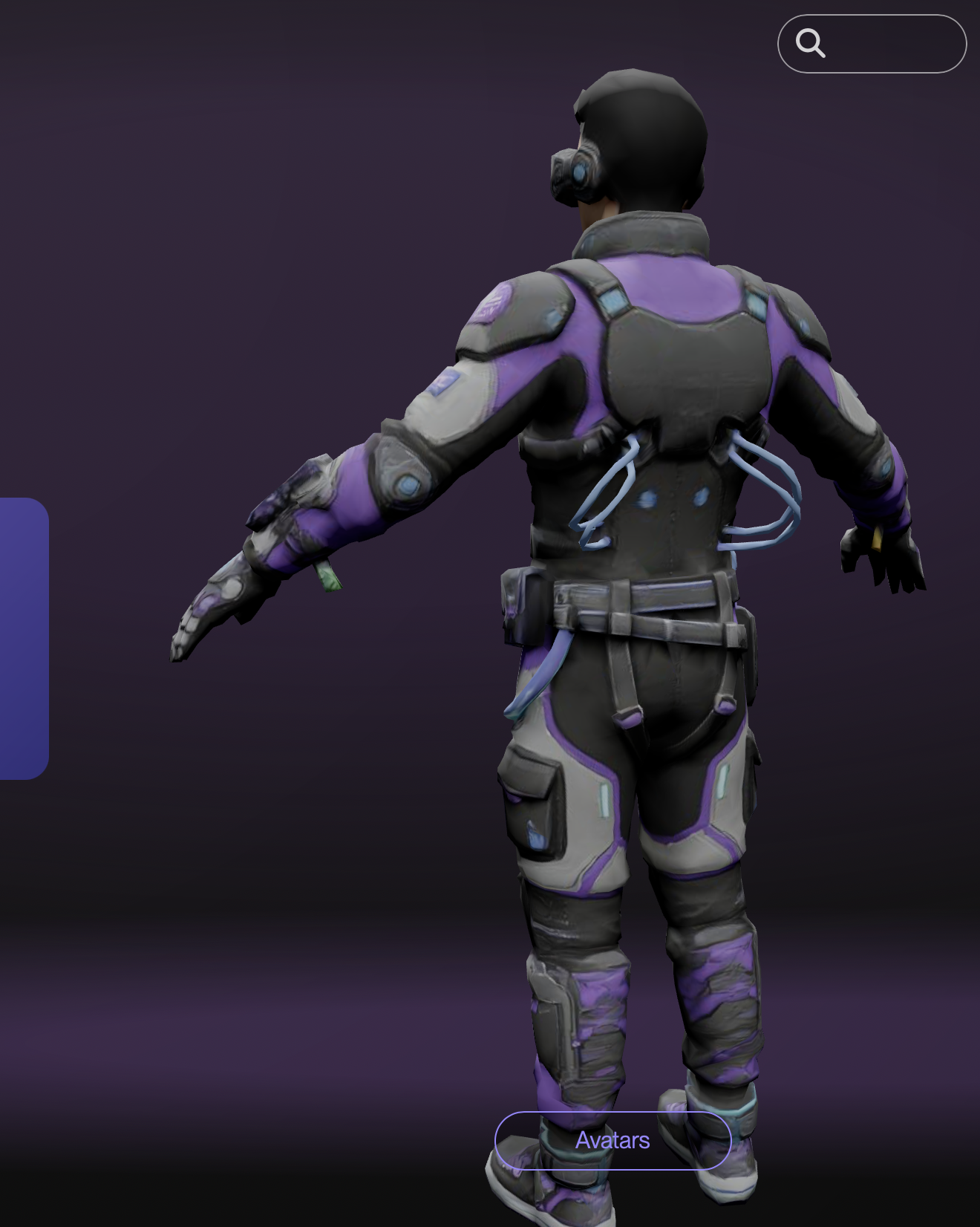
Your created avatars live under My items → Avatars and can be sold in the Shop (see UGC Shop below).
Navigation
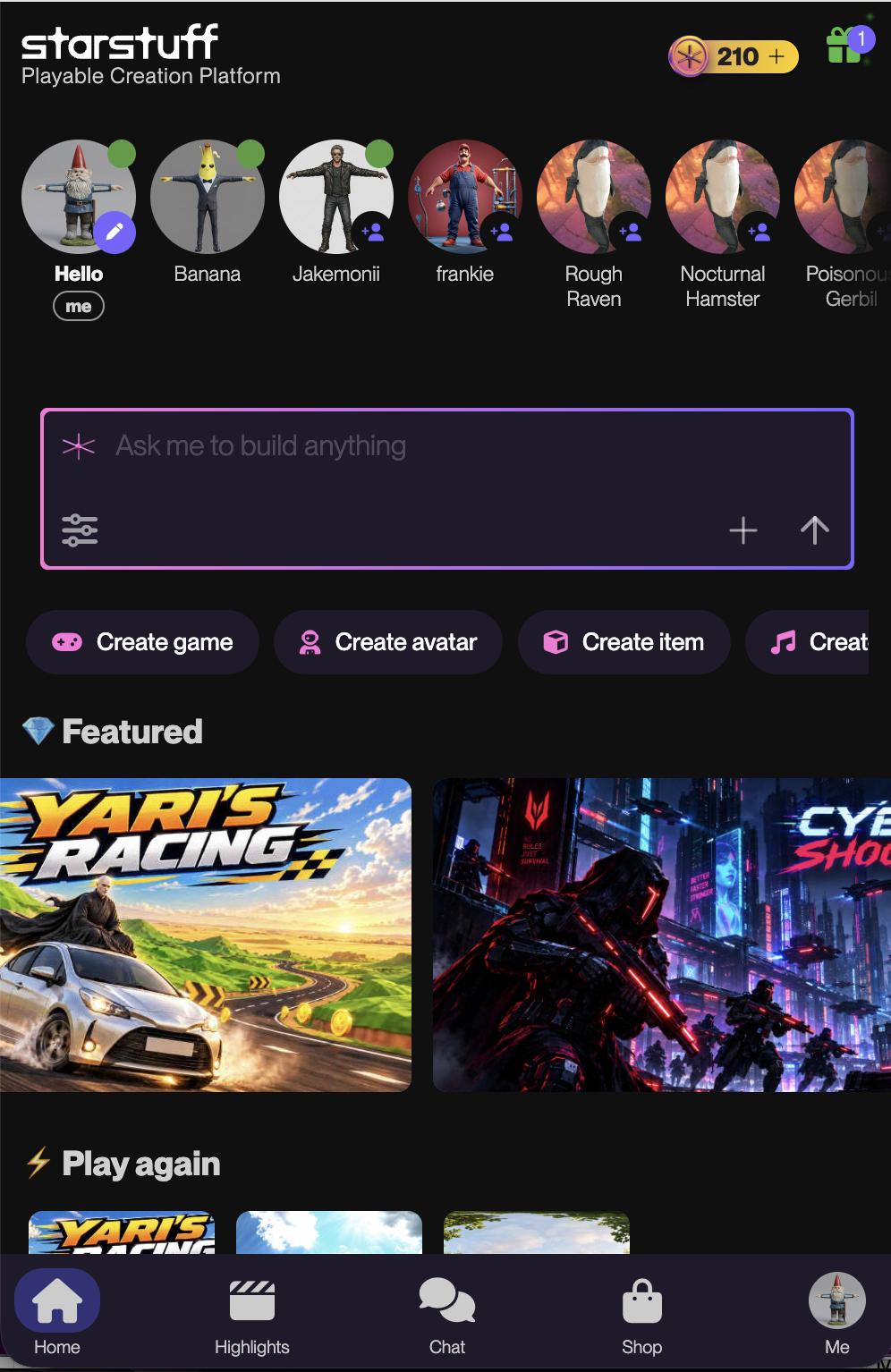
The navigation menu is the same everywhere:
Starstuff Home mobile view
Home
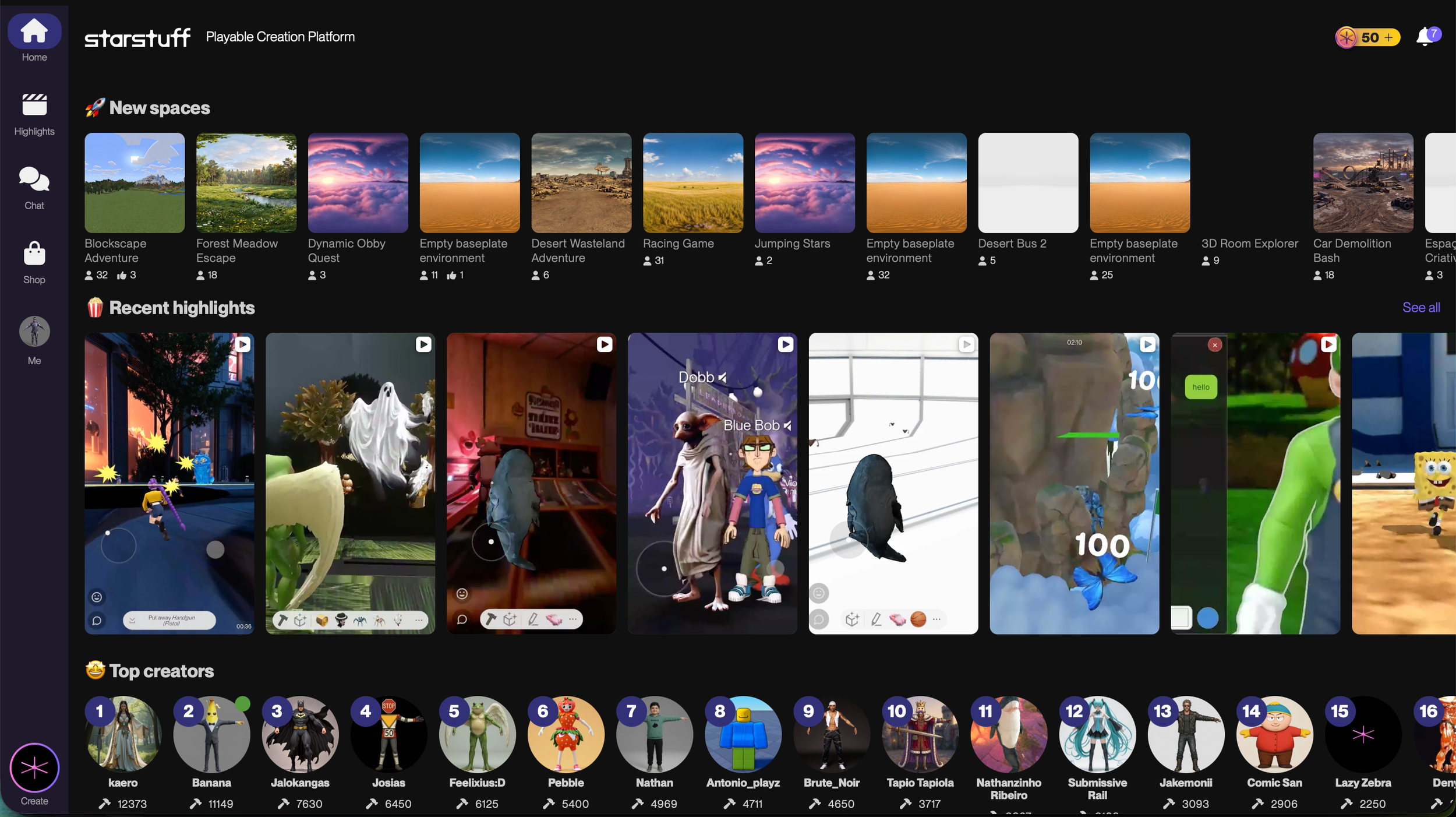
Featured games, New spaces, Top creators, Recent highlights, and the AI prompt box "Ask me to build anything"
Highlights
Short clips (reels) recorded by other users
Chat
Your friends list and conversations
Shop
Buy and sell avatars and items, and get Starbux
Me
Your profile, bio, badges, inventory, search, feedback, quests and settings
Notifications (rewards & quests in the top right corner)
Your quests and rewards claiming tab
Starbux balance
With a + to top up.
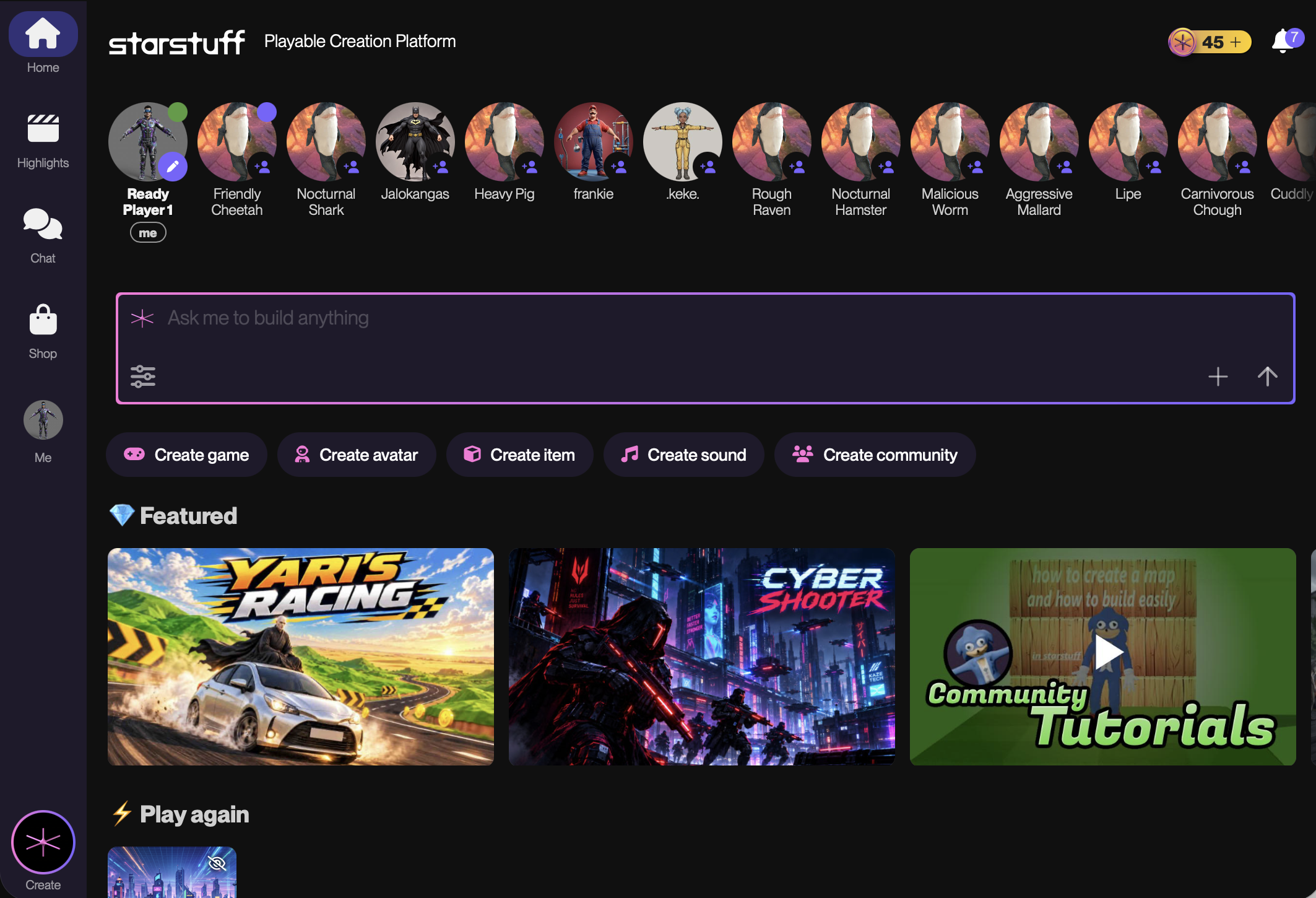
Starstuff Home desktop view
Create (the star button at the bottom)
Create item, Create avatar, Create sound or Create world
The basics
Play something. Tap any space on Home and press Play. You'll be in a live, multiplayer space within seconds.
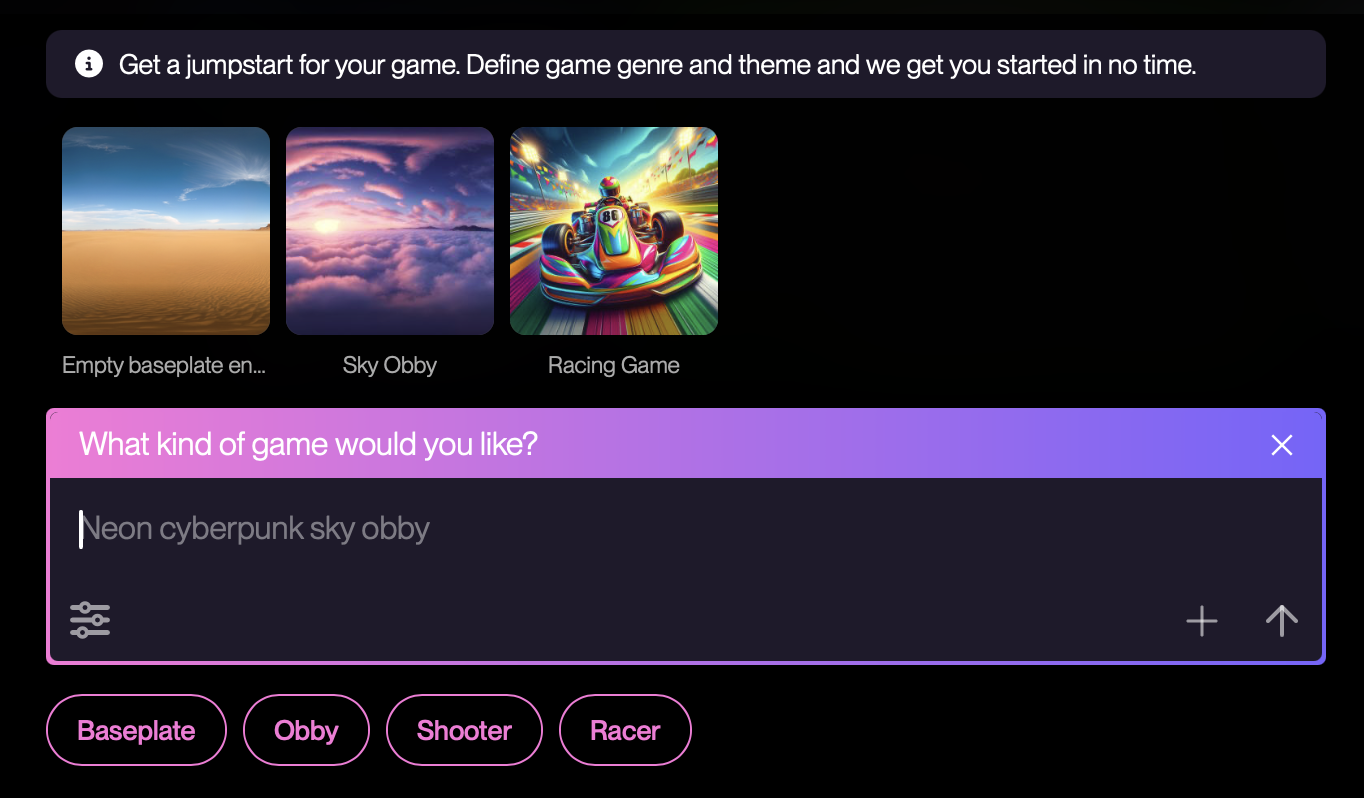
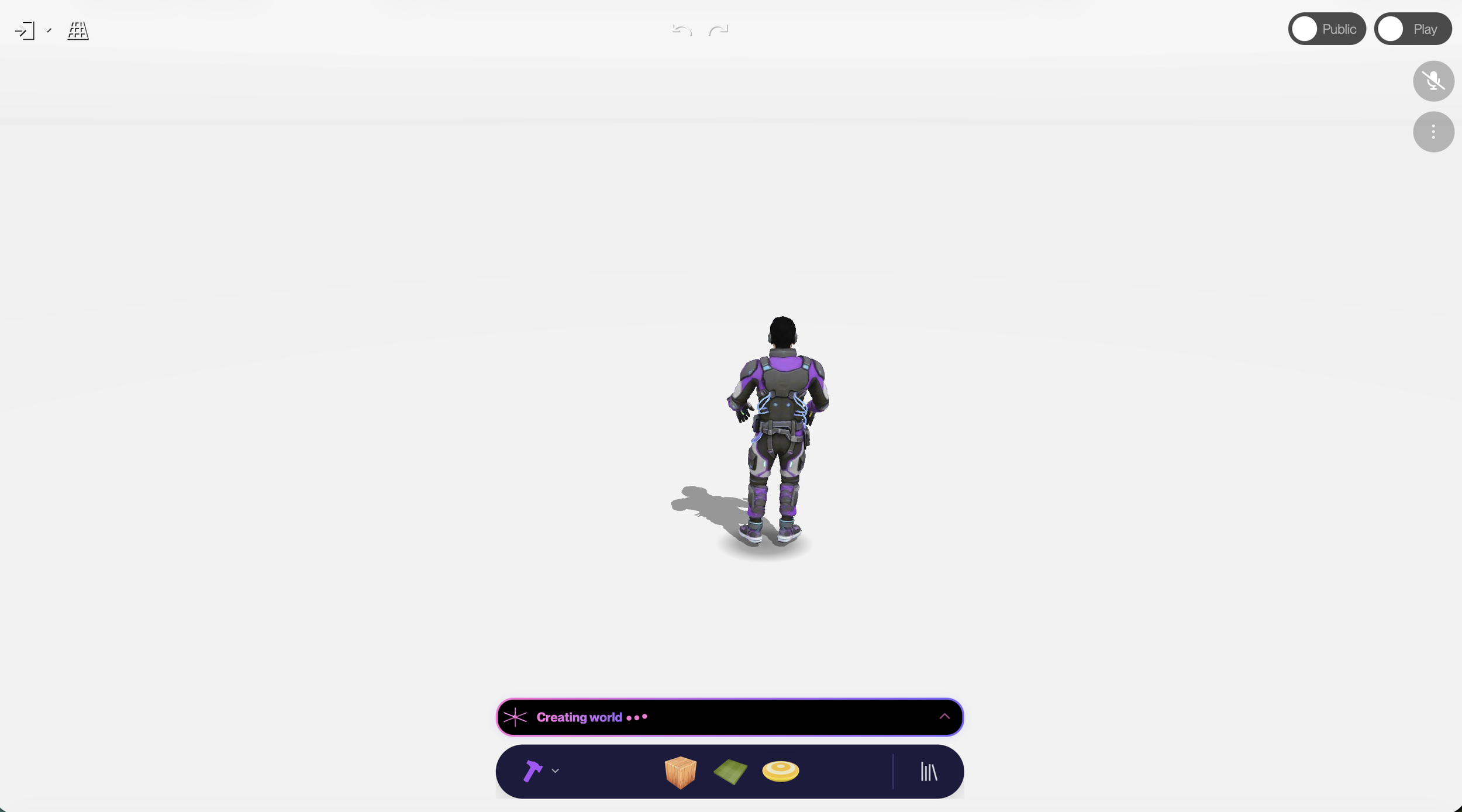
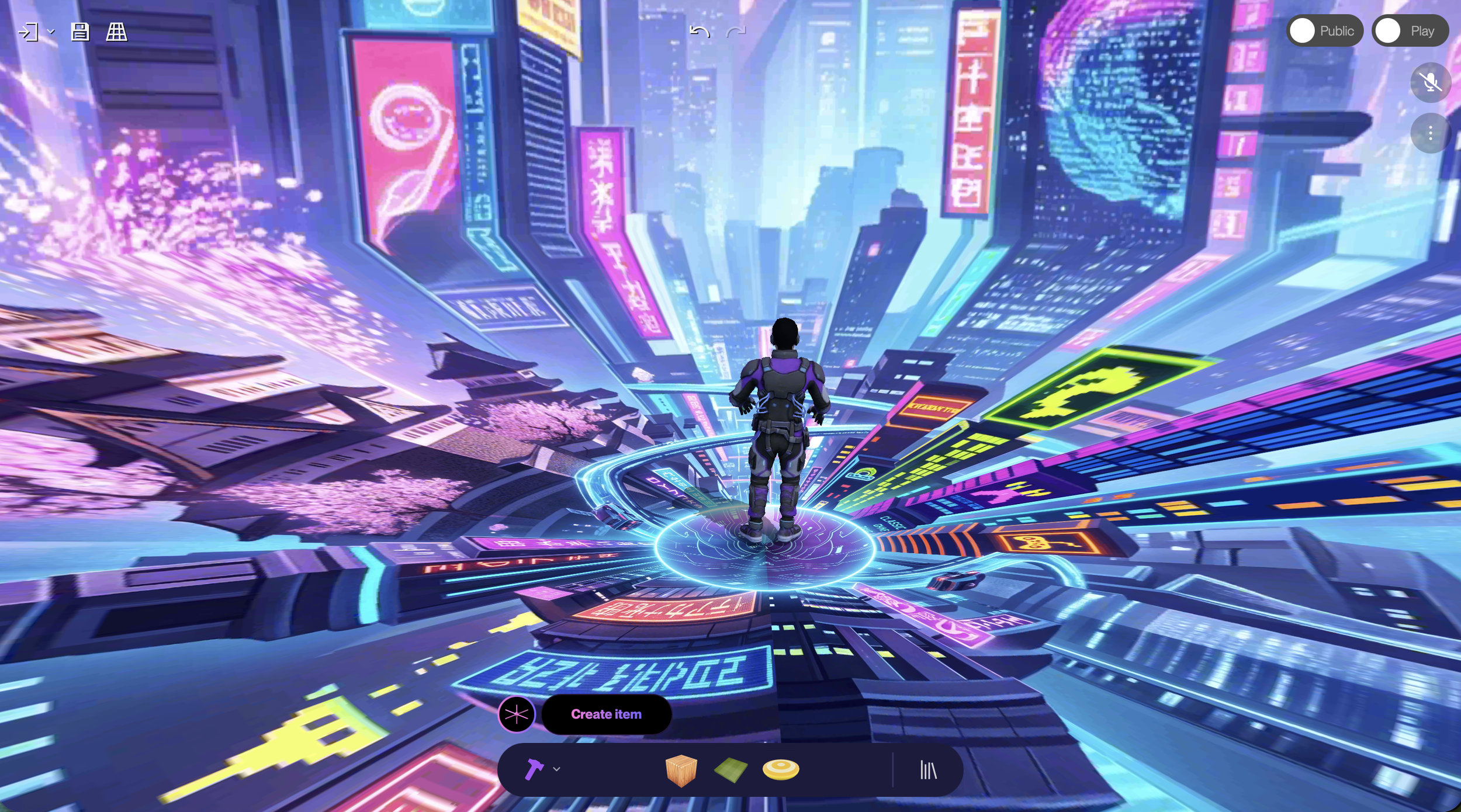
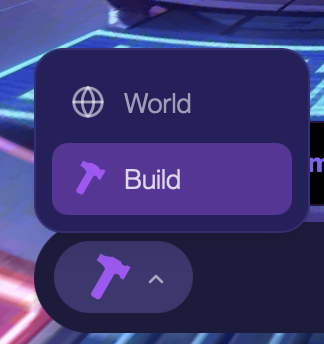
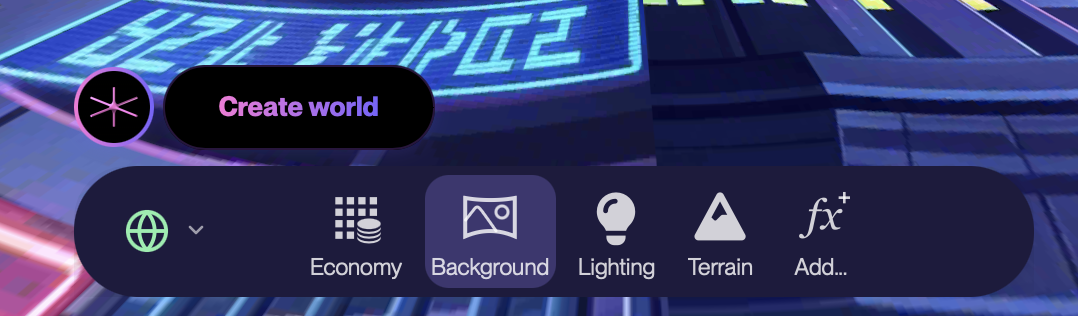
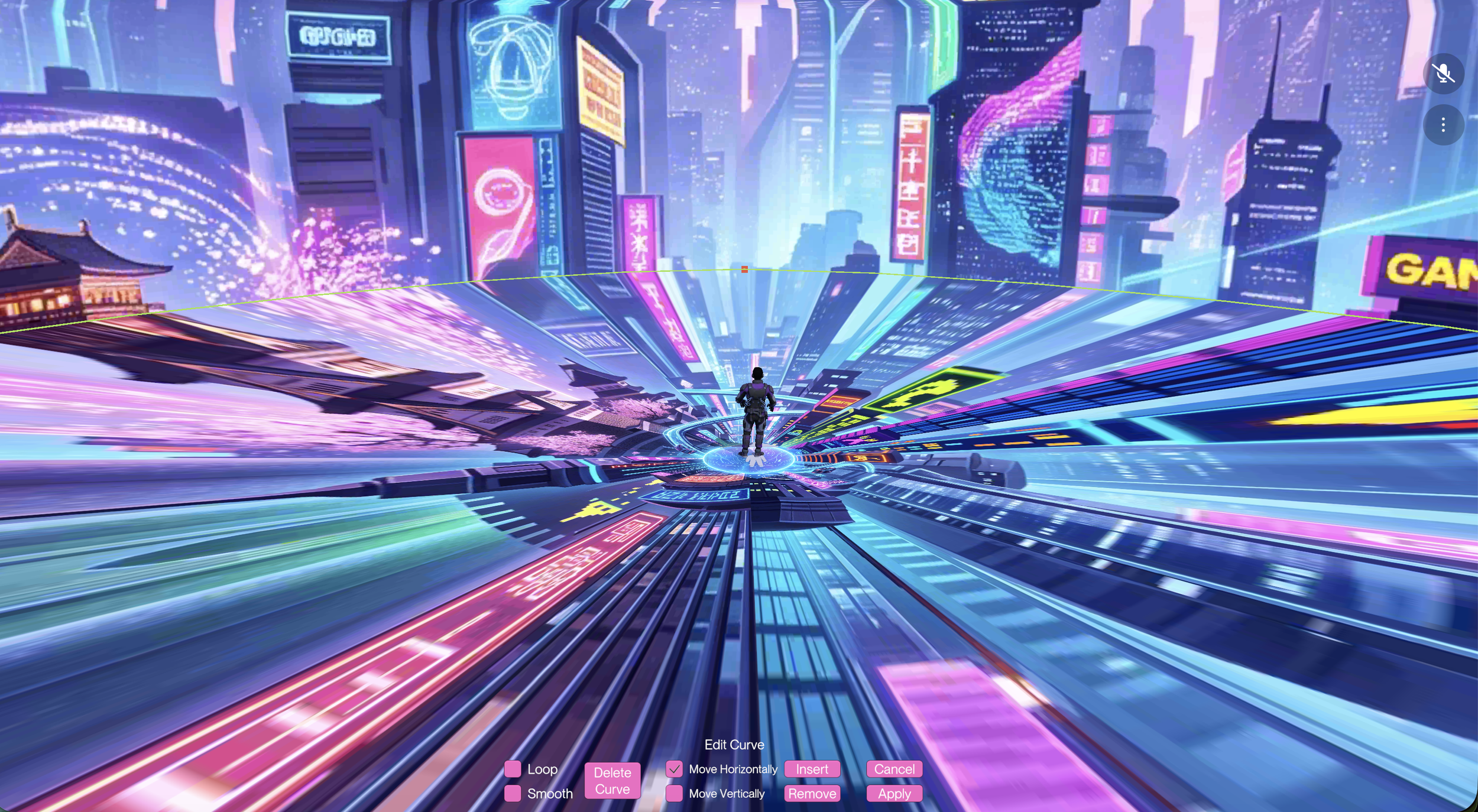
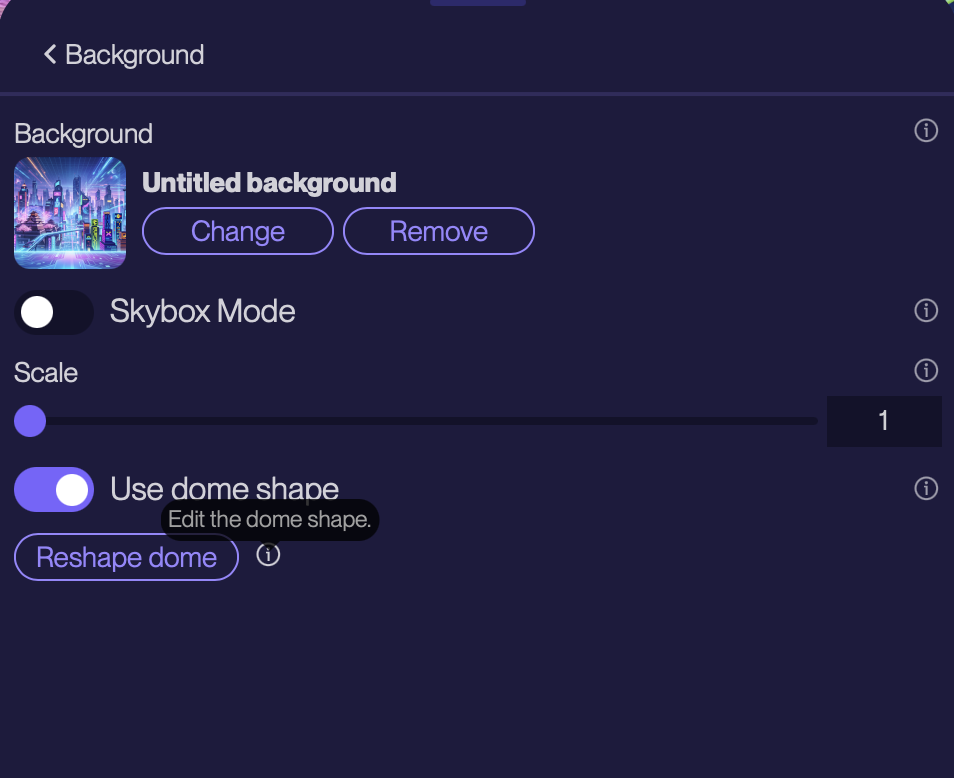
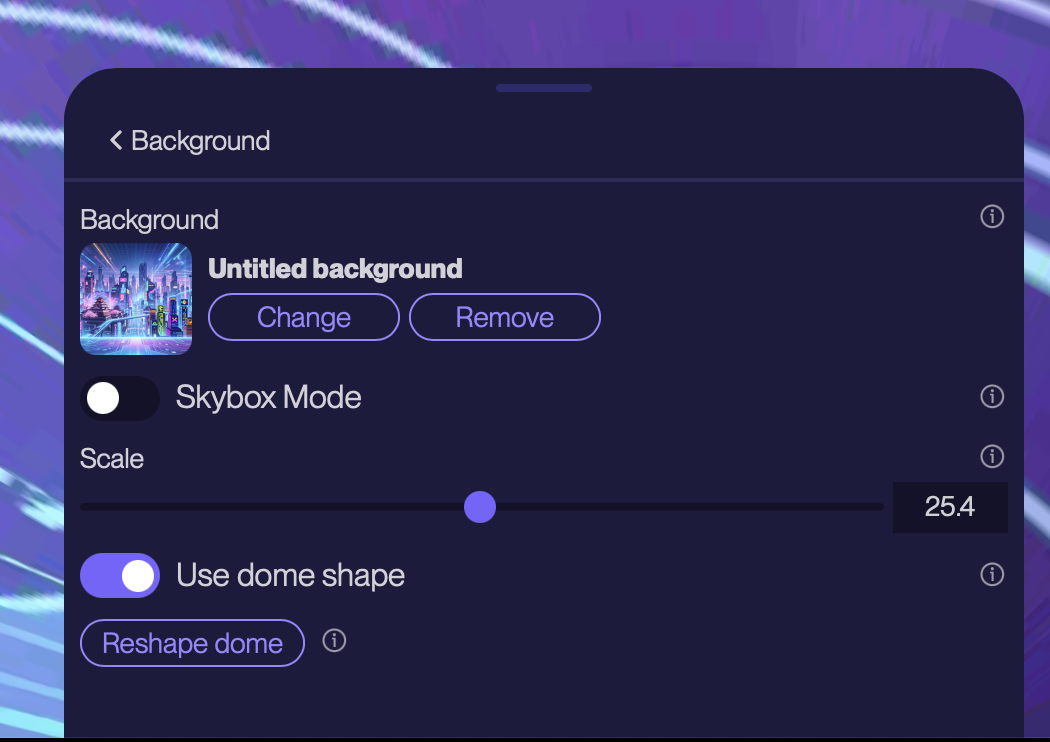
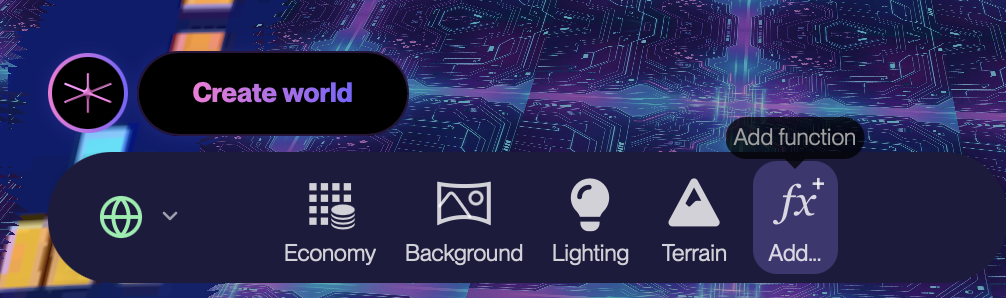
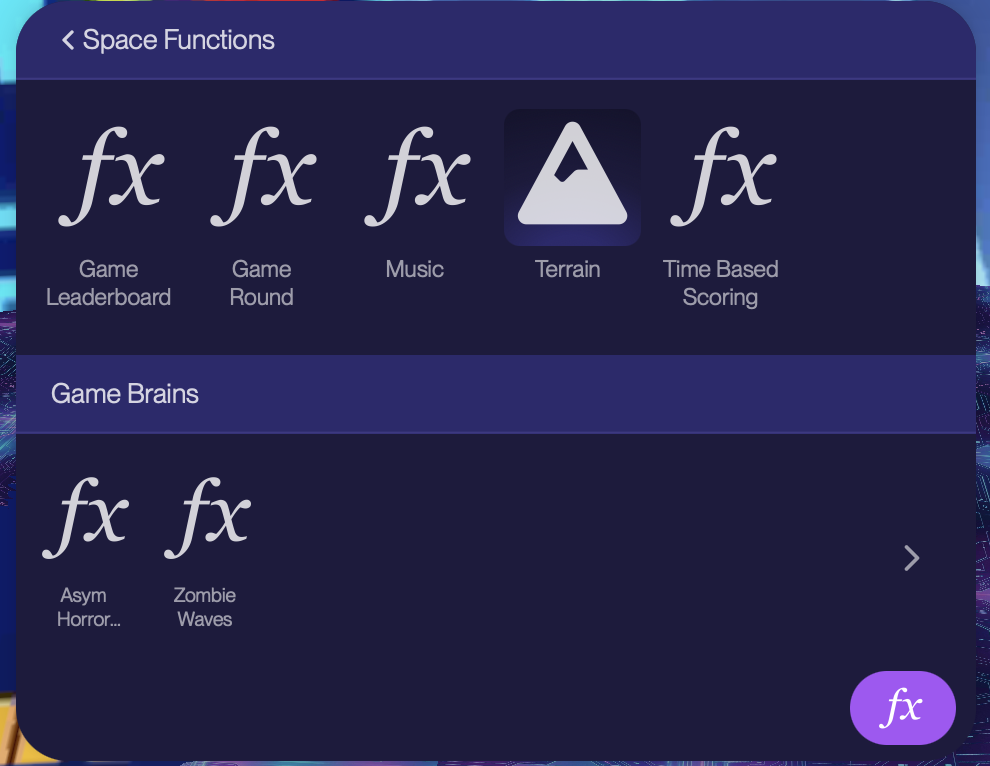
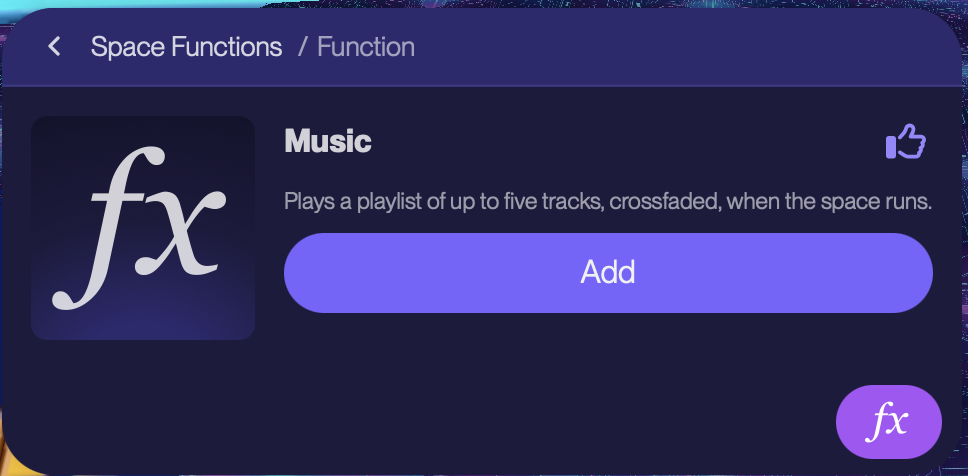
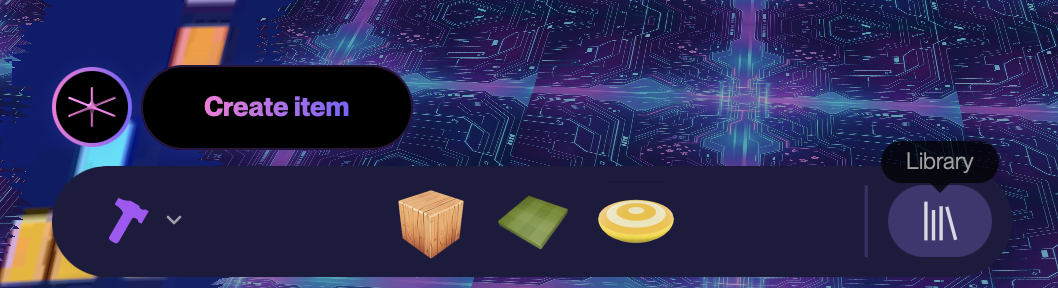
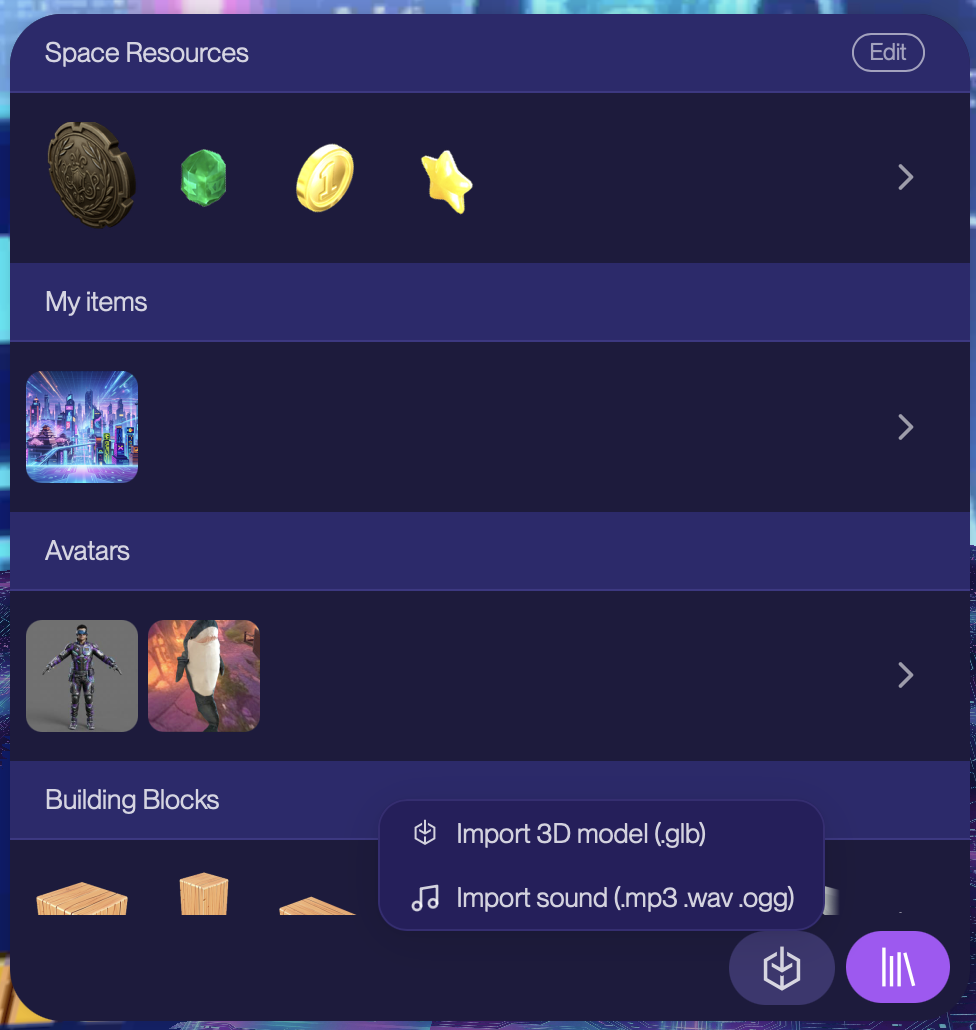
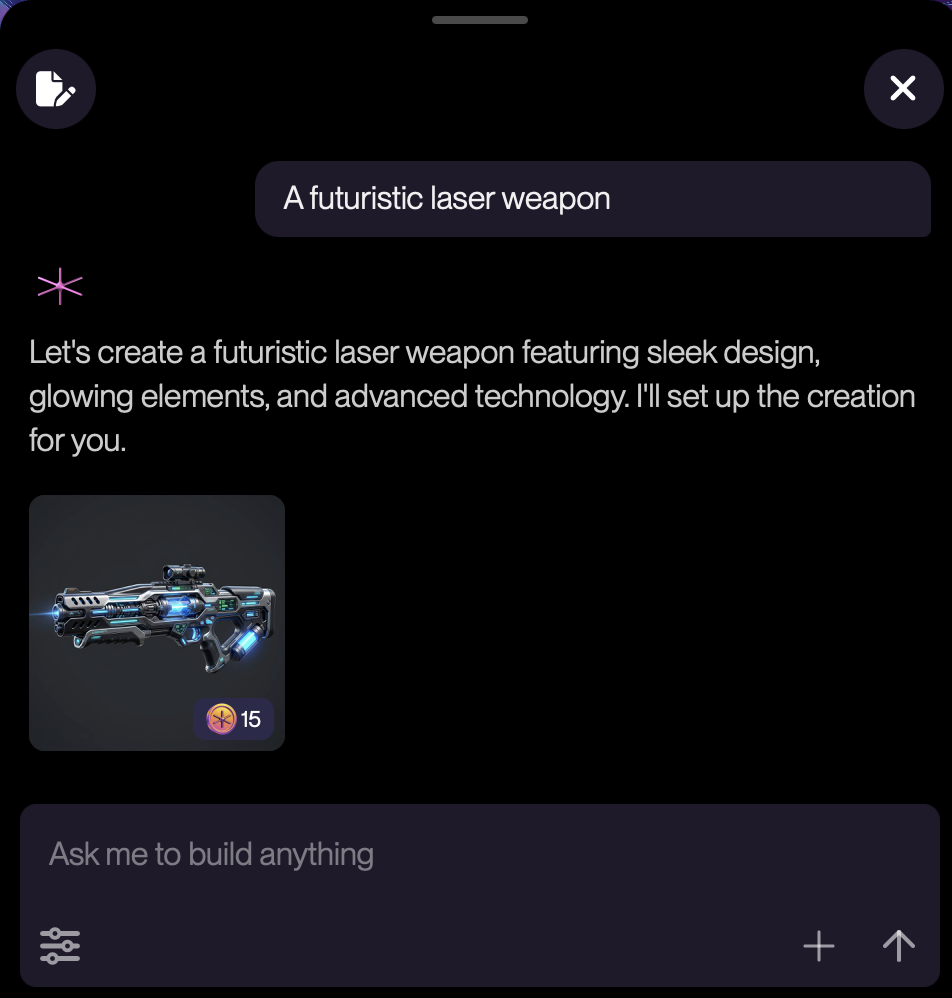
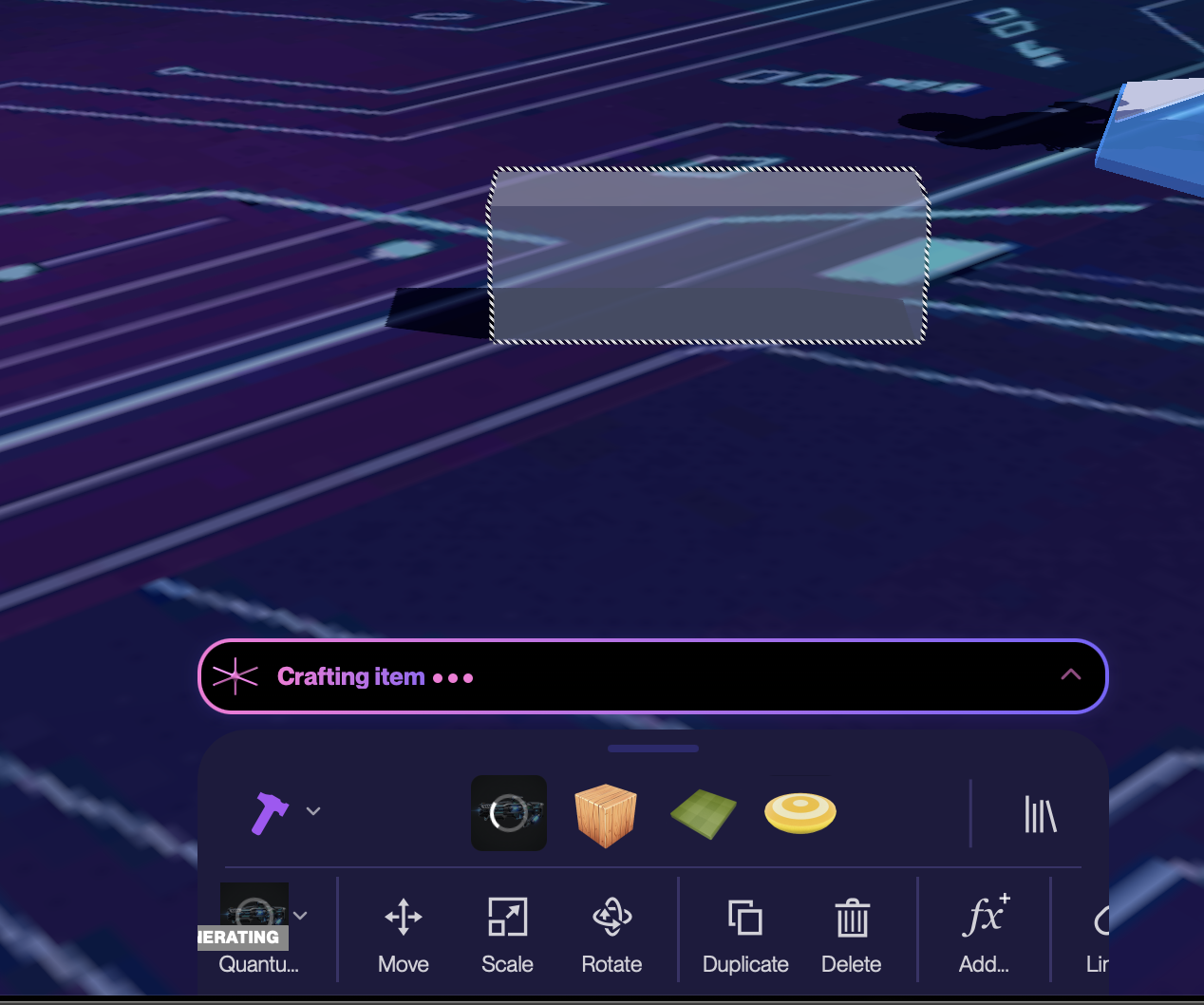
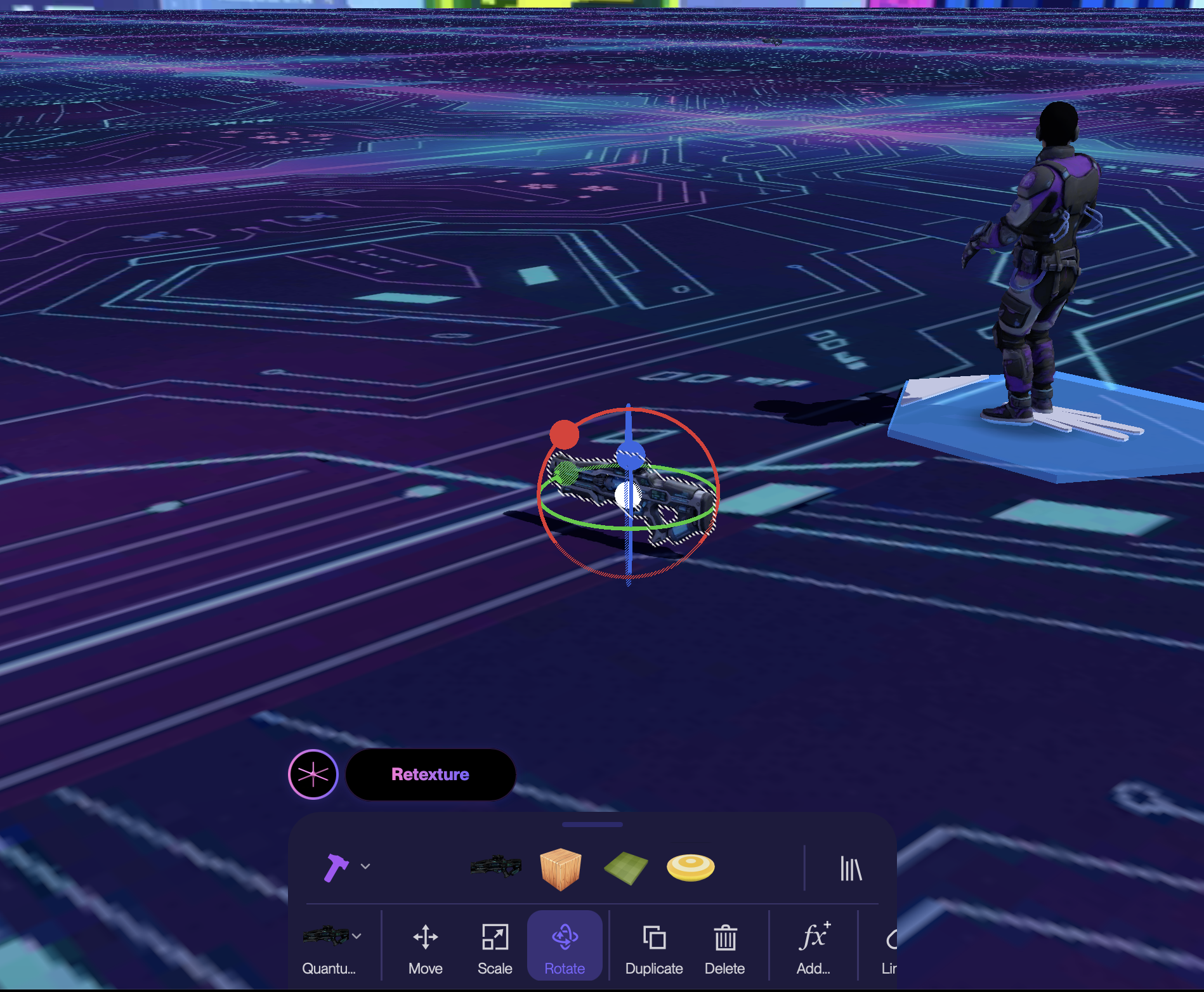
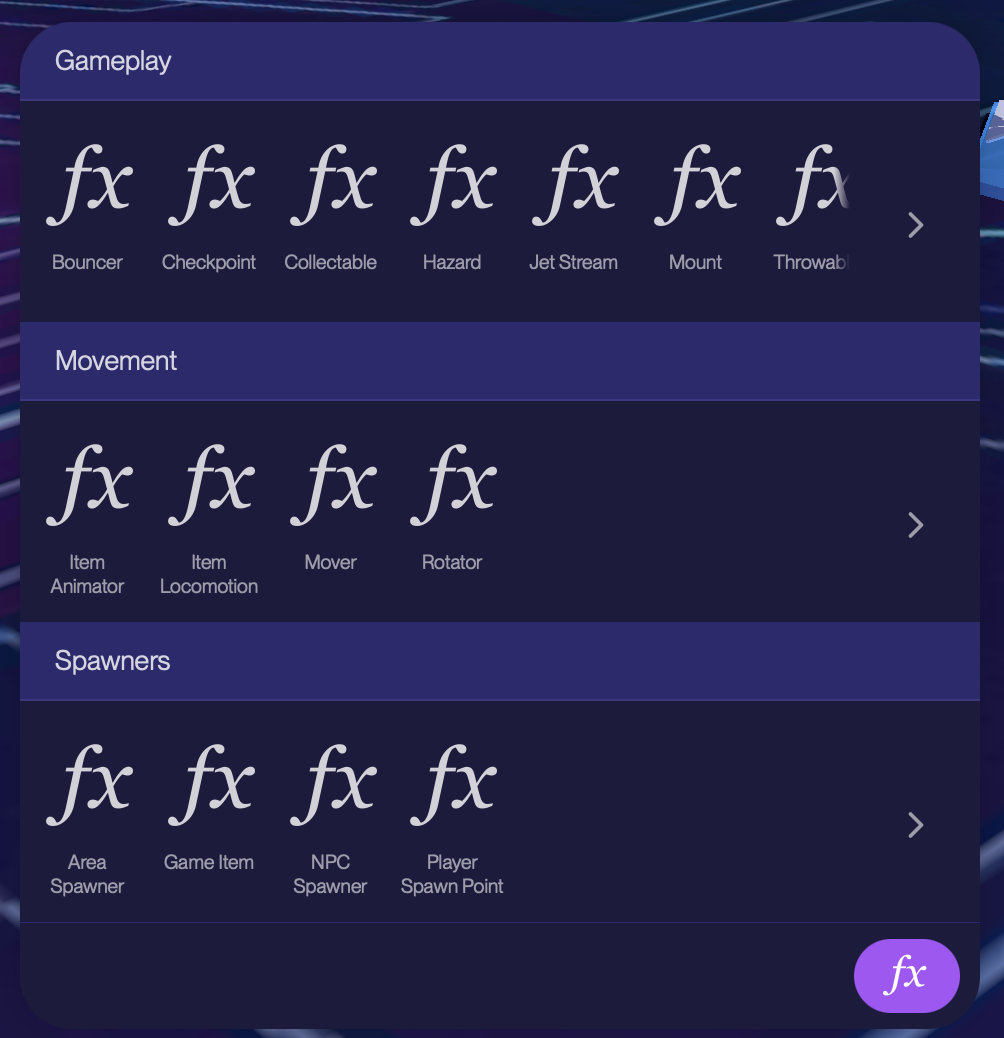
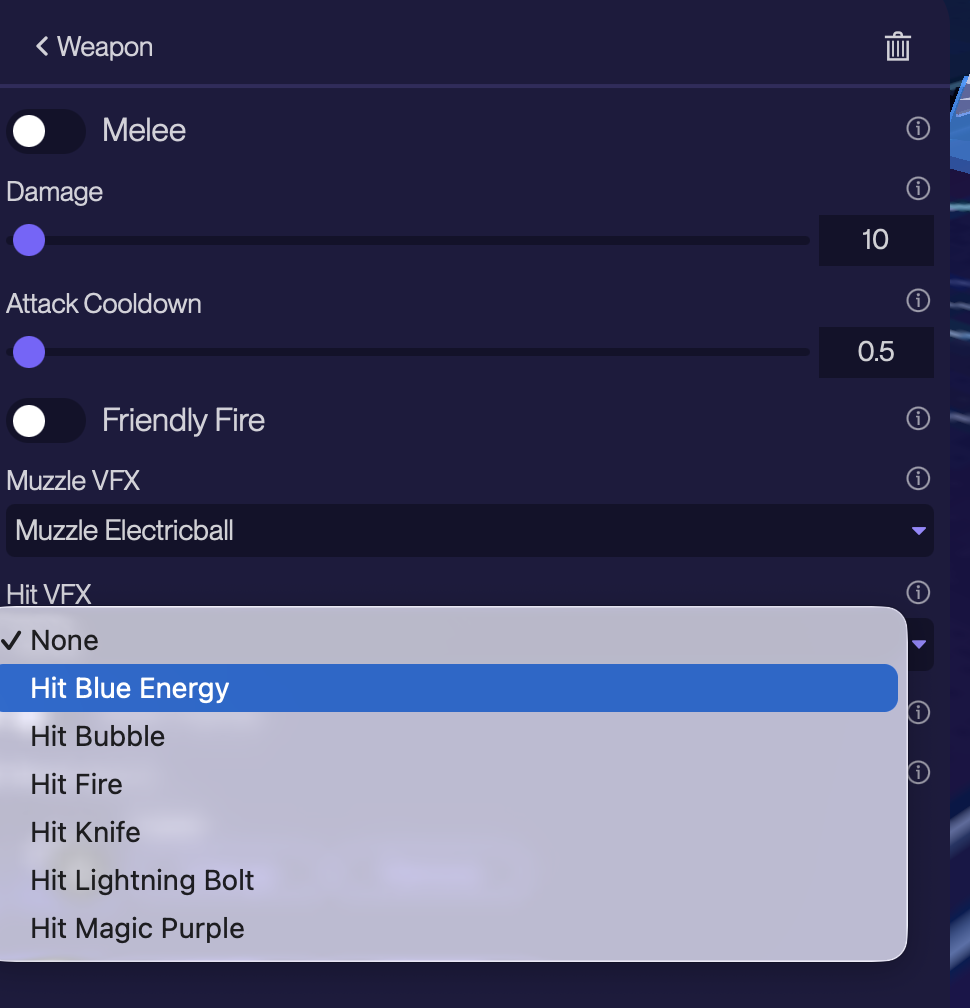
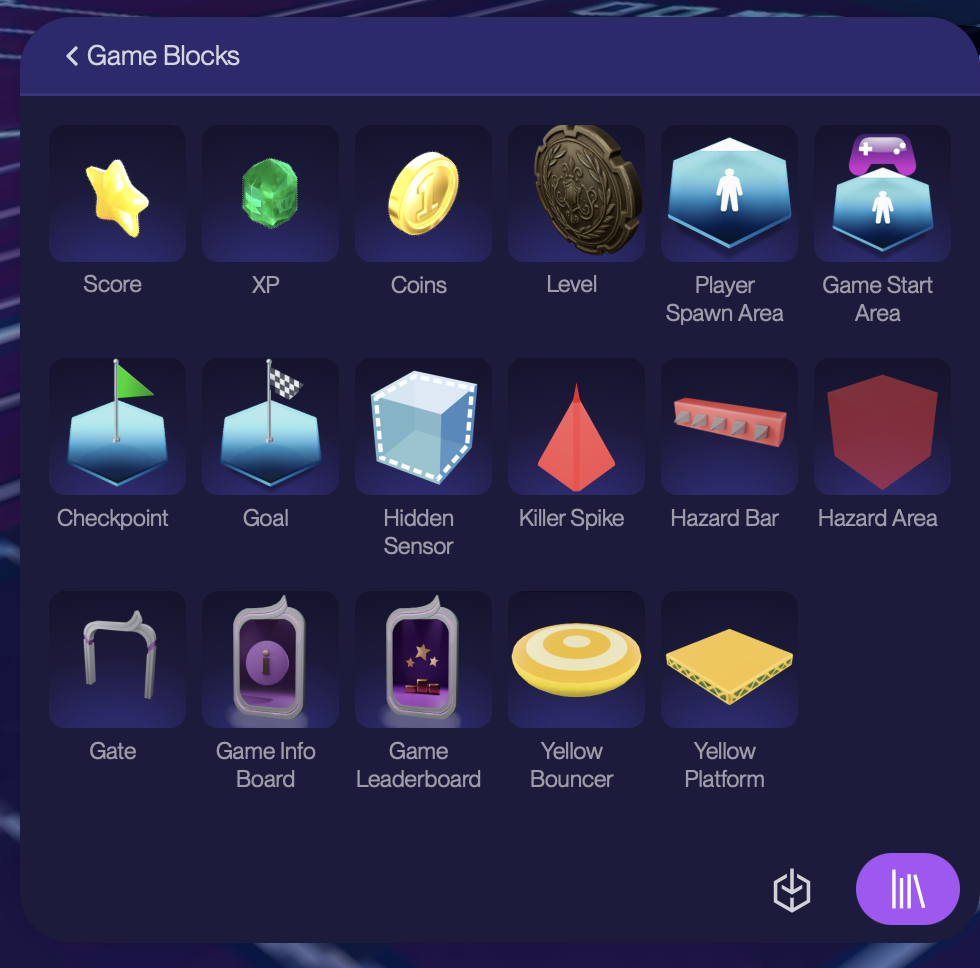
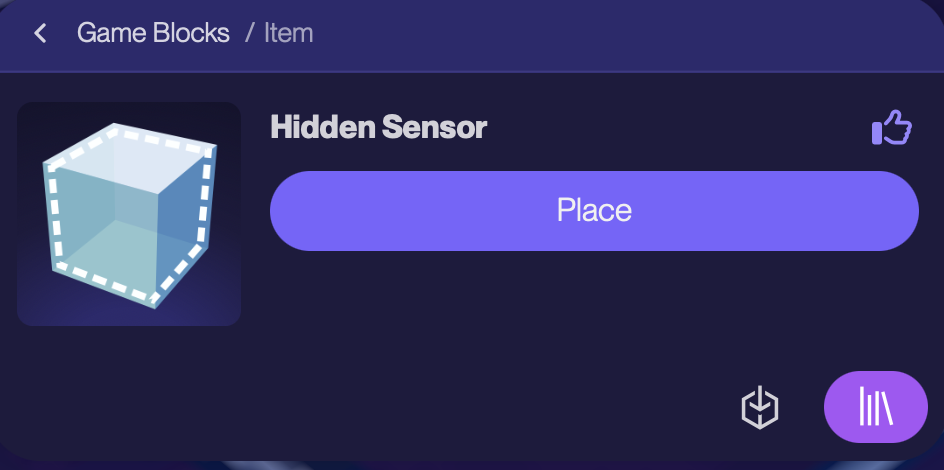
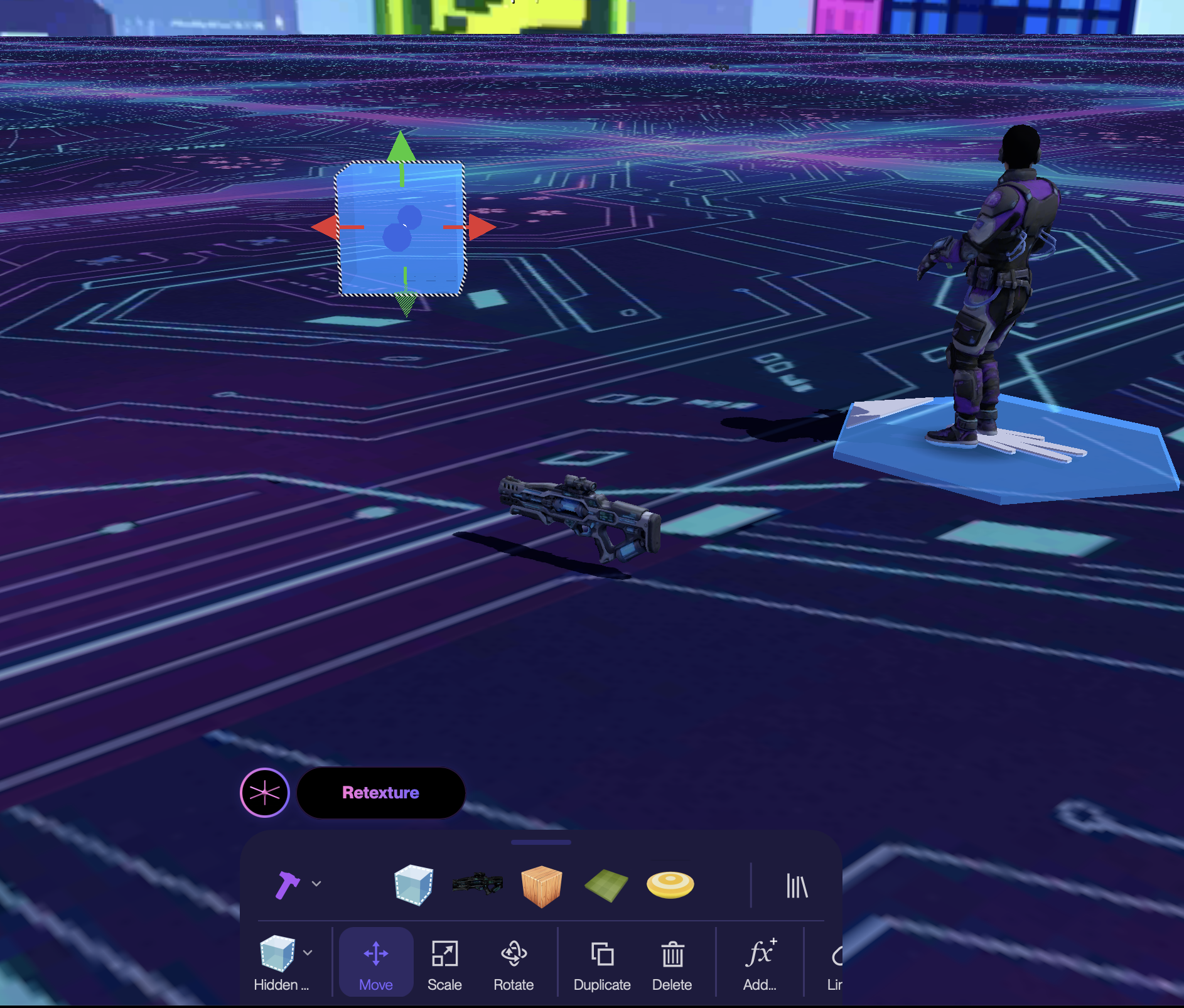
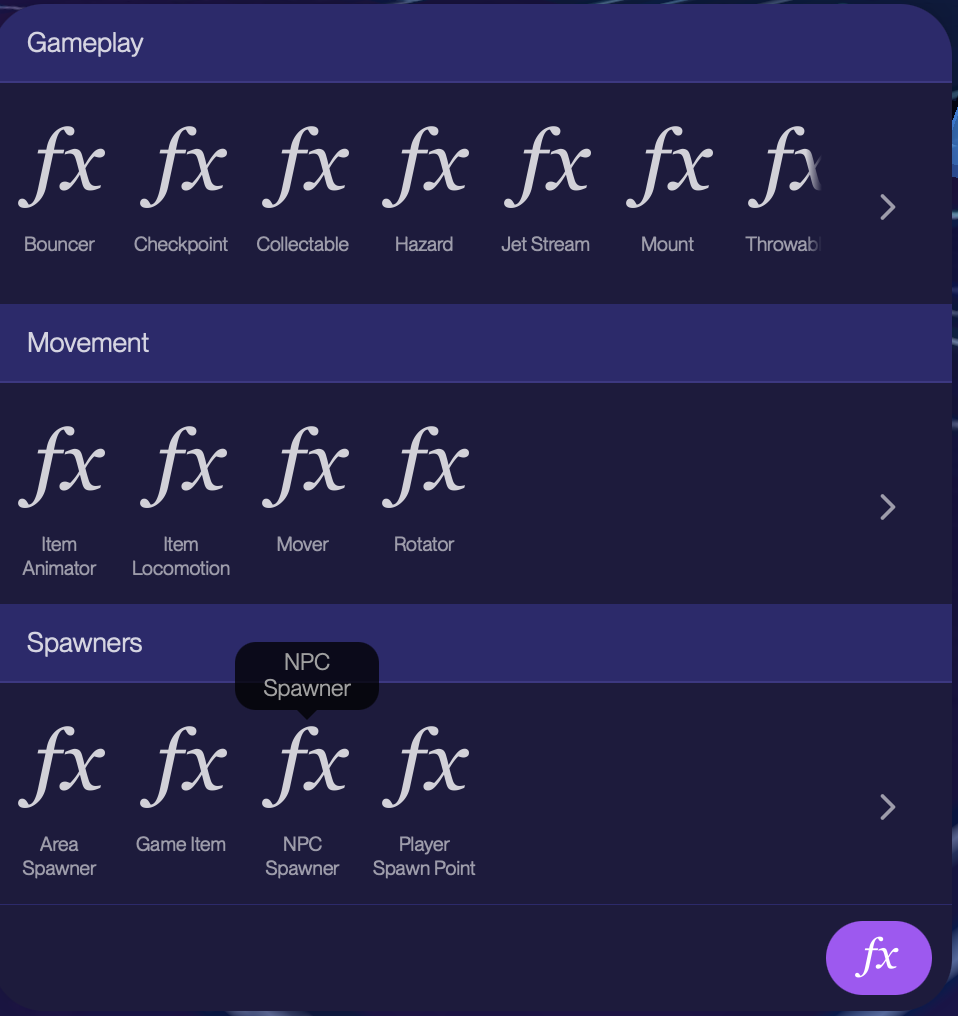
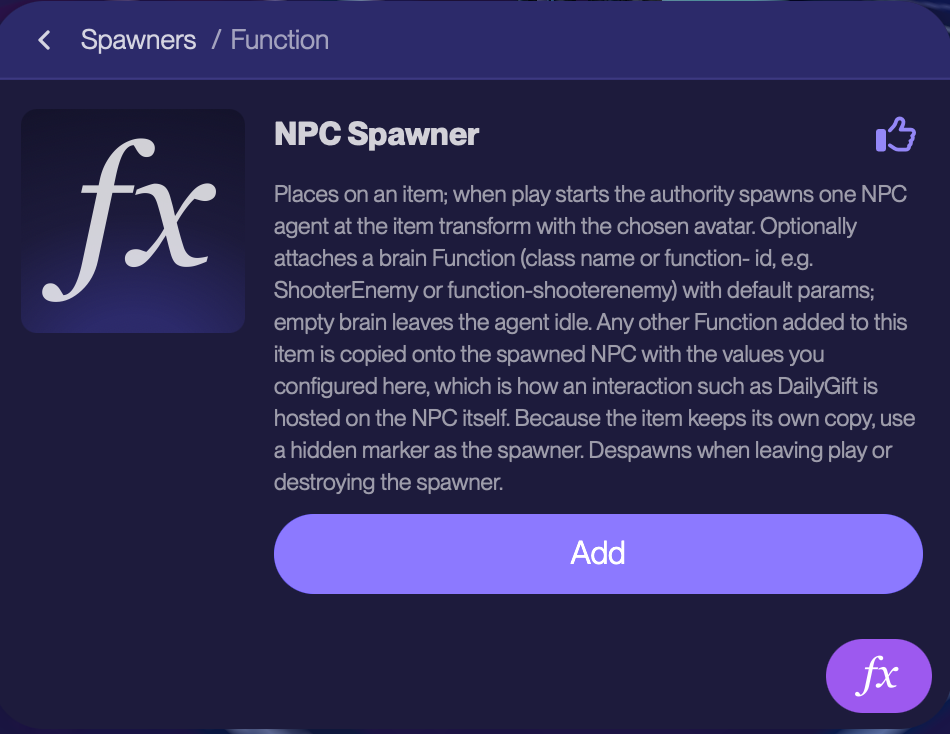
Create something. Type what you want into the prompt box on Home ("a neon cyberpunk sky obby") or use Create button. Starstuff's AI builds a first version; you can edit it in the editor (play toggle in the up-right corner) and keep chatting to create items, change background, create avatar, create sounds and music into the space. Select Hammer in the edit bar for items, assets, game functions and properties. Select World in the edit bar for environment, background, terrain, lighting, music and space functions.
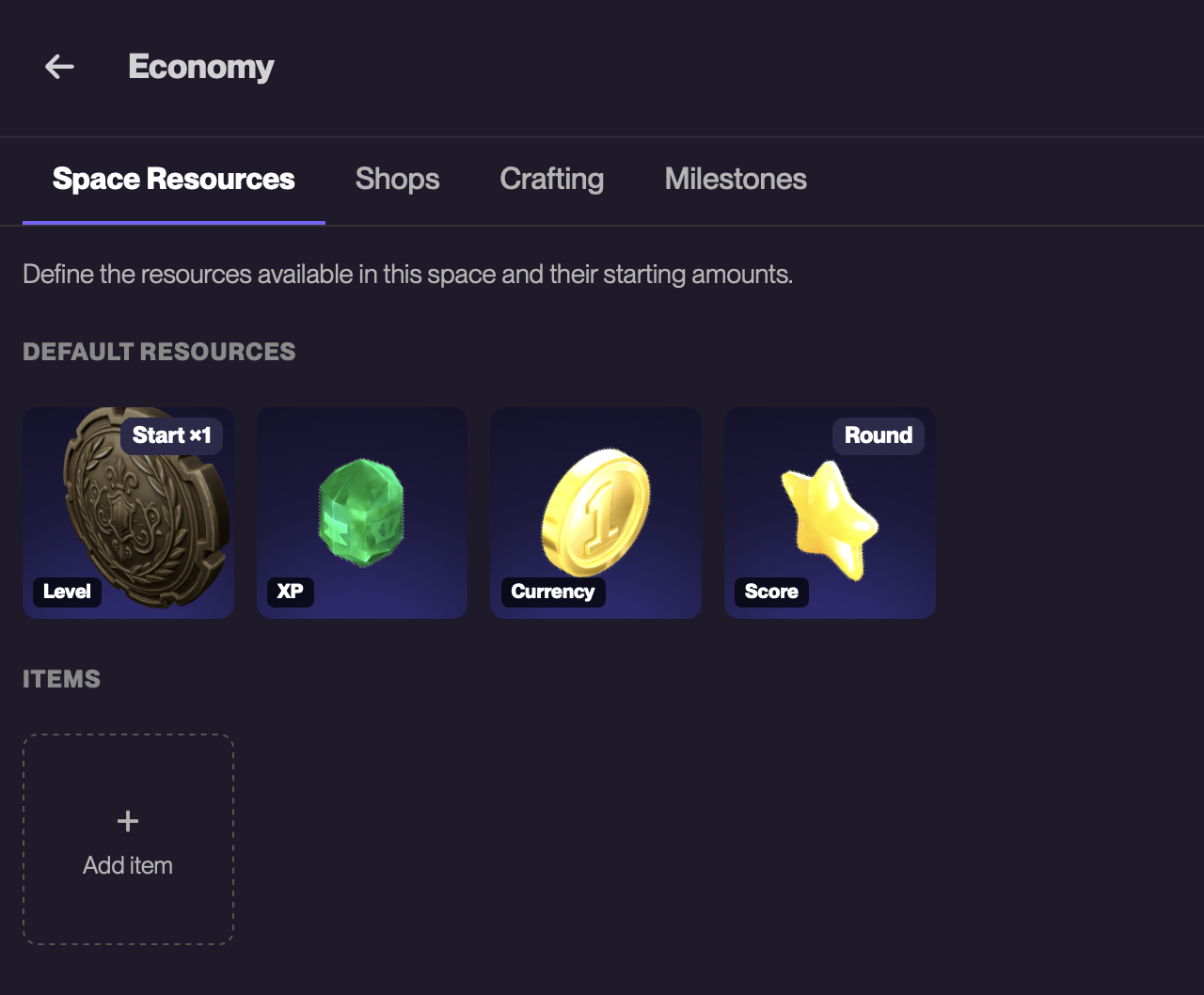
Earn as you go. Quests on your profile reward XP and Starbux for doing the basics: choosing an avatar, picking badges, adding friends, spending time in spaces, coming back (daily gift), level ups. Selling your creations in the global shop or in the in-game shops earns you Starbux or game currencies.
Friends
Friends can chat with you, join the same spaces, and build together.
Add a friend
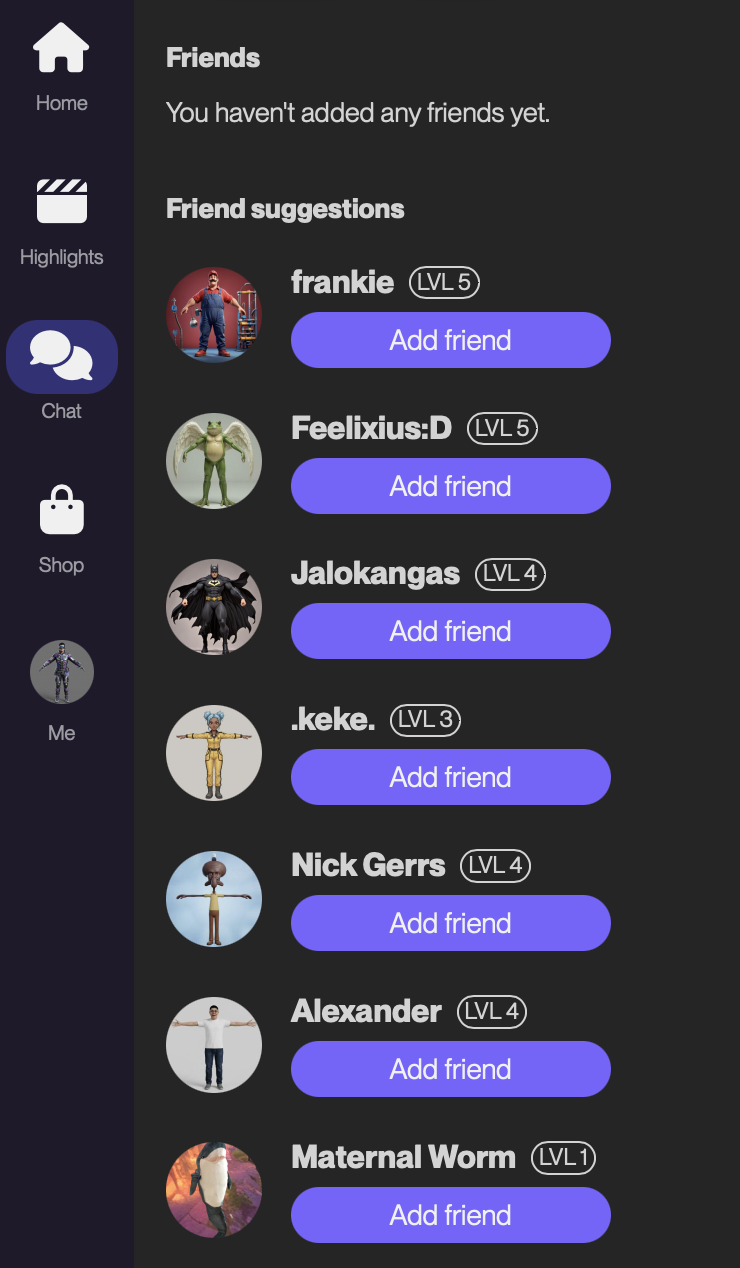
Open Chat. Under Friend suggestions you'll see people to add; press Add friend next to a name.
Or open anyone's profile (tap their name or avatar in a space, a highlight or a leaderboard) and press Add friend. The same screen has Report if something isn't right.
When someone adds you, you’ll see friend requests in the chat tab. Accept it and you're friends. Sending and accepting requests both complete a quest and earn XP.
Click the share icon in your profile, game or any piece of content to send it to a friend, and invite them to that page.
Chat with friends
Open Chat, pick a friend, and type. Direct messages are only between friends, so add someone first if you want to message them privately.
Join a game together
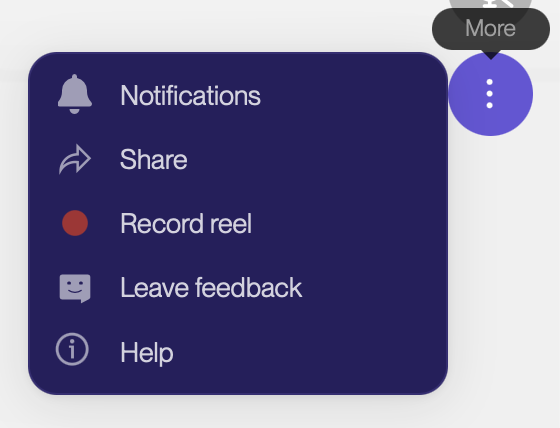
Share a space link to invite a friend directly into it
Find the space you want to play on Home, Highlights or via search, and press Play.
Press Share (the arrow icon in the space, or More → Share) and send the link or show the QR code to your friend.
Your friend opens the link and lands in the same live space with you. Spaces are multiplayer by default; everyone in the same instance sees each other.
Co-create
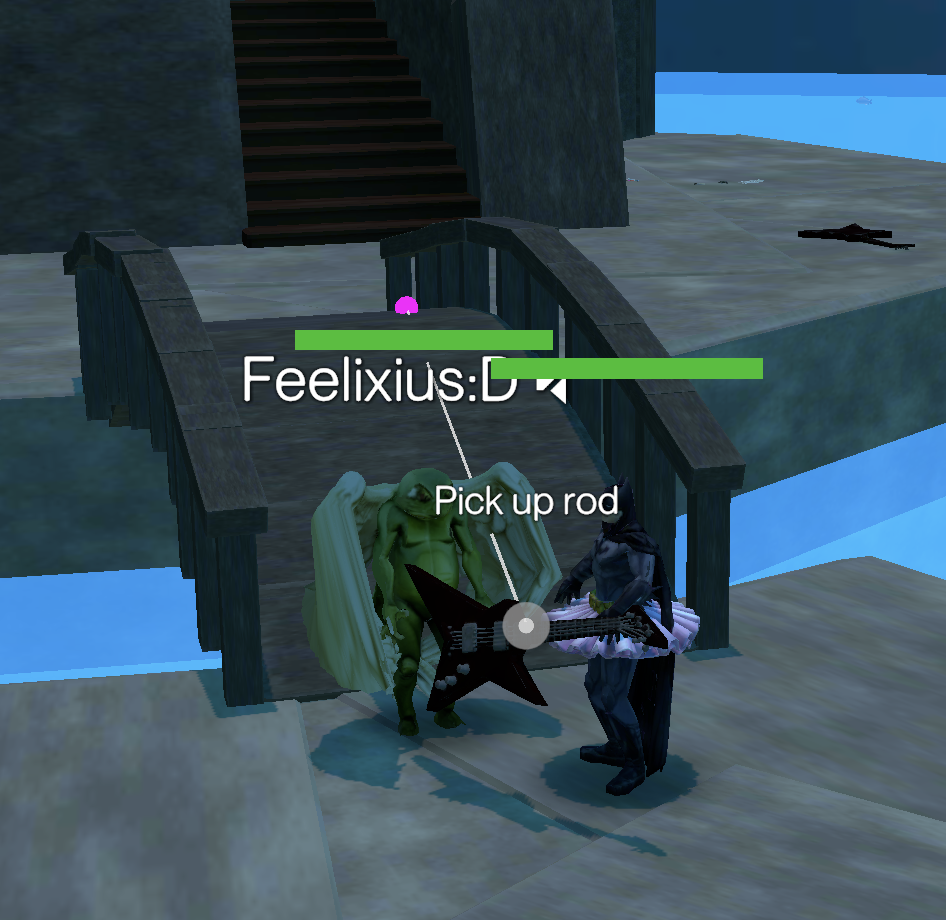
Create together with friends
A friend can build with you in your space: invite them in with the share link while you're in Build mode, and they can place and edit the world alongside you.
Chat: text, DMs and voice
There are three ways to talk in Starstuff.
Space chat
Where: The speech-bubble button on the right edge of any live space. Press the speech bubble, type, and hit enter. Messages appear for everyone in the space.
Who sees it: Everyone in that space instance
Moderation: There’s automatic community violation detection and moderation in the text chats.
Direct messages
Where: Chat in the main navigation menu. Open Chat, choose a friend and write. If you can't message someone, you aren't friends yet; send a friend request first.
Who sees it: Only you and a friend. DMs are friends-only
Moderation: There’s automatic community violation detection and moderation in the text chats.
Voice chat
Where: The microphone button on the right edge of a live space. Voice is muted by default. Press the microphone button to unmute (the tooltip reads Unmute); press it again to mute. Your browser will ask for microphone permission the first time.
Who hears it: Everyone in that space instance
Moving around, voice and emotes in live spaces
When you press Play you're in a live space.
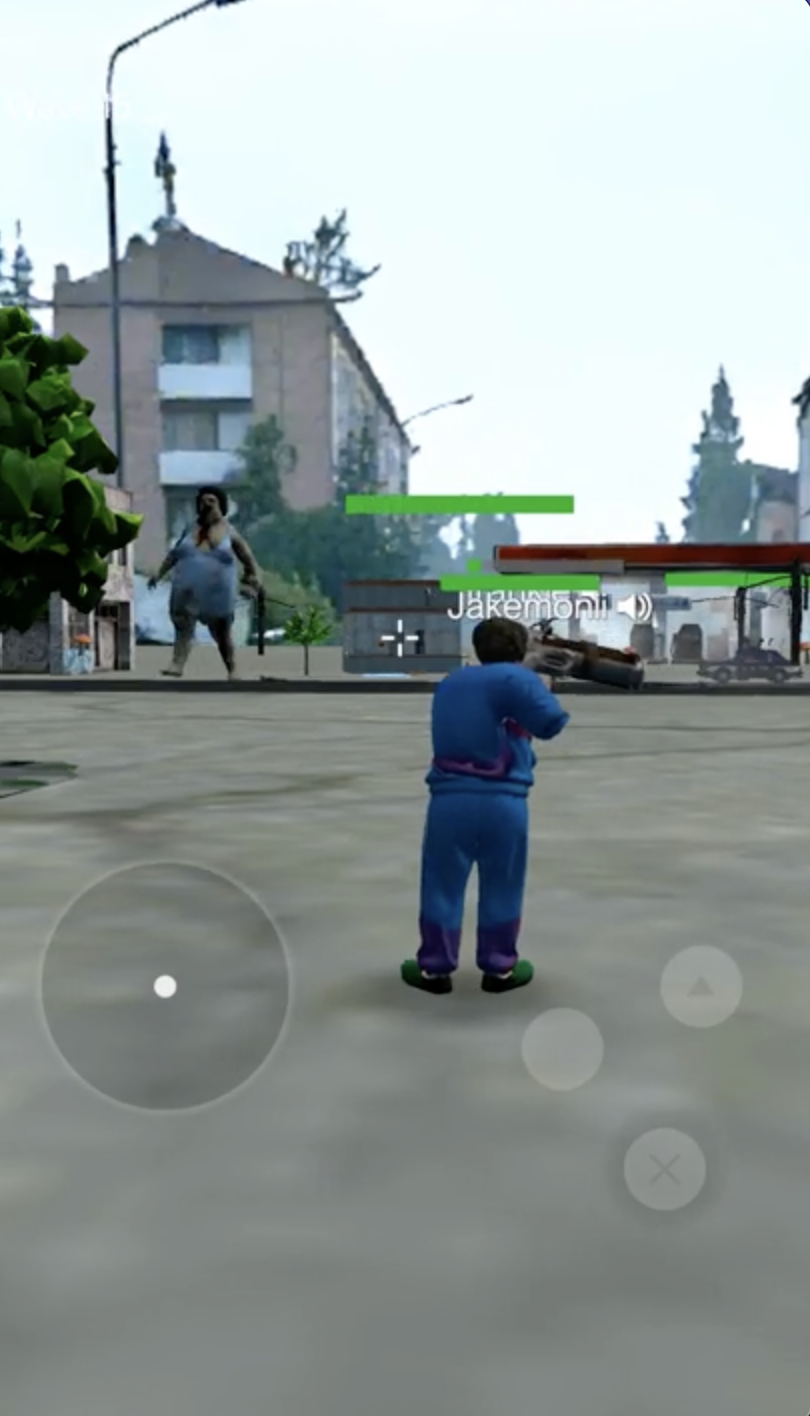
The controls are shown on screen: at the bottom right on desktop and on mobile they appear in the middle bottom of the screen → joystick left and jump/shoot/exit/action buttons right
Move: WASD on desktop, joystick on mobile
Look around: Drag the environment in 360 with mouse on desktop or finger on mobile
Jump: Space on desktop, jump arrow-up button on mobile (down-right)
Camera lock: Tab on desktop
Drop or exit vehicle: Q on desktop, X button on mobile (down-right)
Shoot/Hit: E on desktop, Action button on mobile (down-right)
Interact: Go close enough to an item with an interaction dot, and click it when you see the action text
Right-edge buttons
In every live space, the column of round buttons on the right edge gives you:
Microphone: unmute or mute voice chat.
Smiley: open the emote wheel and play an emote or dance for everyone to see.
Speech bubble: open space text chat.
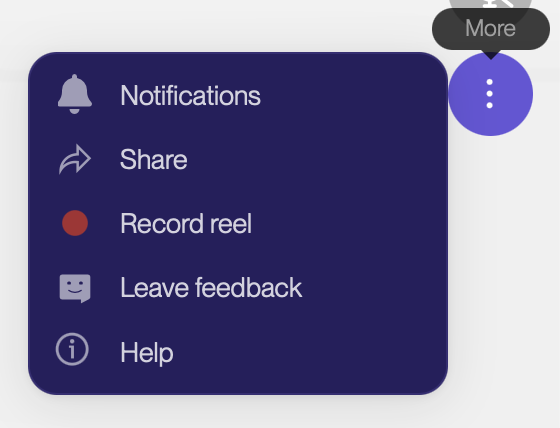
More (⋮): Notifications, Share, Record reel, Leave feedback, Help.
Record a reel
Press More → Record reel to capture a short clip of what's happening. Reels appear on Highlights, and are an easy way to show off a build, an emote or a win.
Leave a space
Press the exit arrow at the top left to return to Home. Your progress in the space's score, currency and XP is saved per space.
